Video Meetings
Galy includes a built-in video conferencing feature powered by Jitsi, allowing you to conduct telemedicine consultations without leaving the platform.
Creating a video appointment
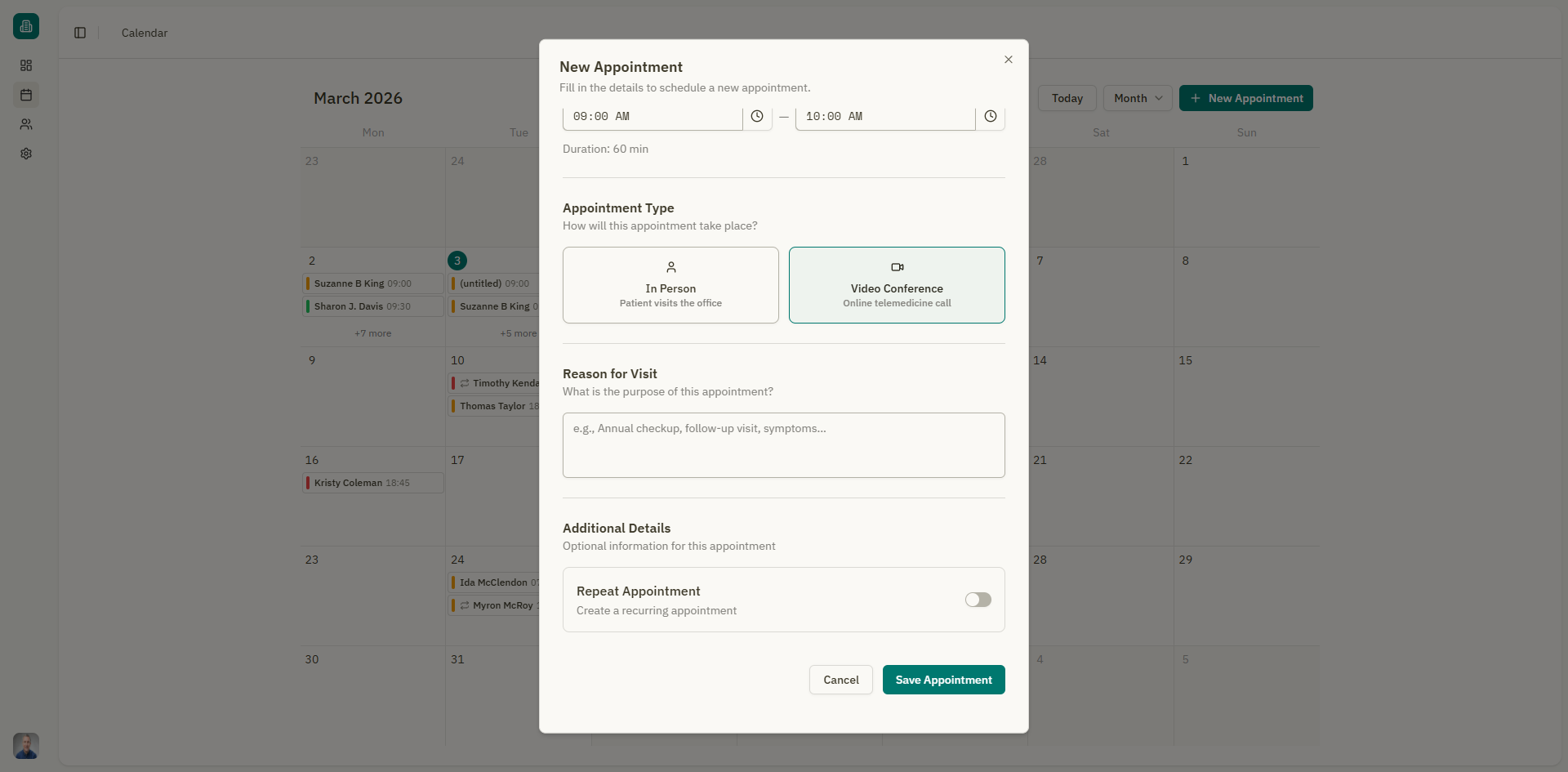
When creating an appointment, select "Video Conference" as the appointment type:
- Open the new appointment form.
- In the "Appointment Type" section, choose "Video Conference" instead of "In Person."
- Complete the rest of the appointment form as usual.
- Click "Save Appointment".
A meeting room is automatically created for this appointment.
Sharing the meeting link
After creating a video appointment, you can share the meeting link with your patient:
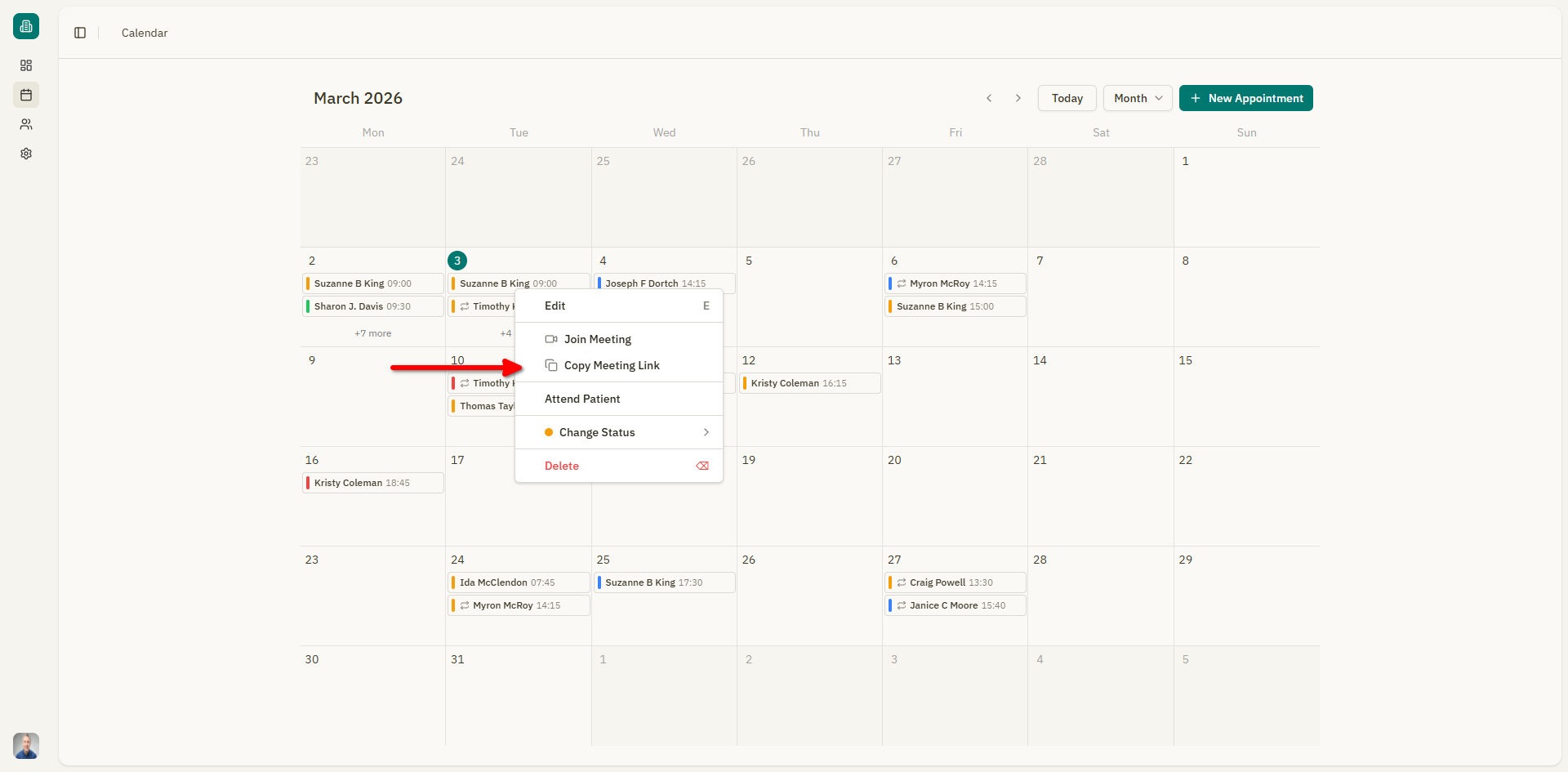
- Click on the appointment in the calendar.
- Click the "Copy Meeting Link" button or the share icon.
- A dialog displays the meeting link. Click "Copy" to copy it to your clipboard.
- Send the link to your patient via email, messaging, or any other channel.
The patient can join the meeting using this link without creating a Galy account.
Starting a meeting
To start the video consultation:
- Click the "Join Meeting" button on the appointment.
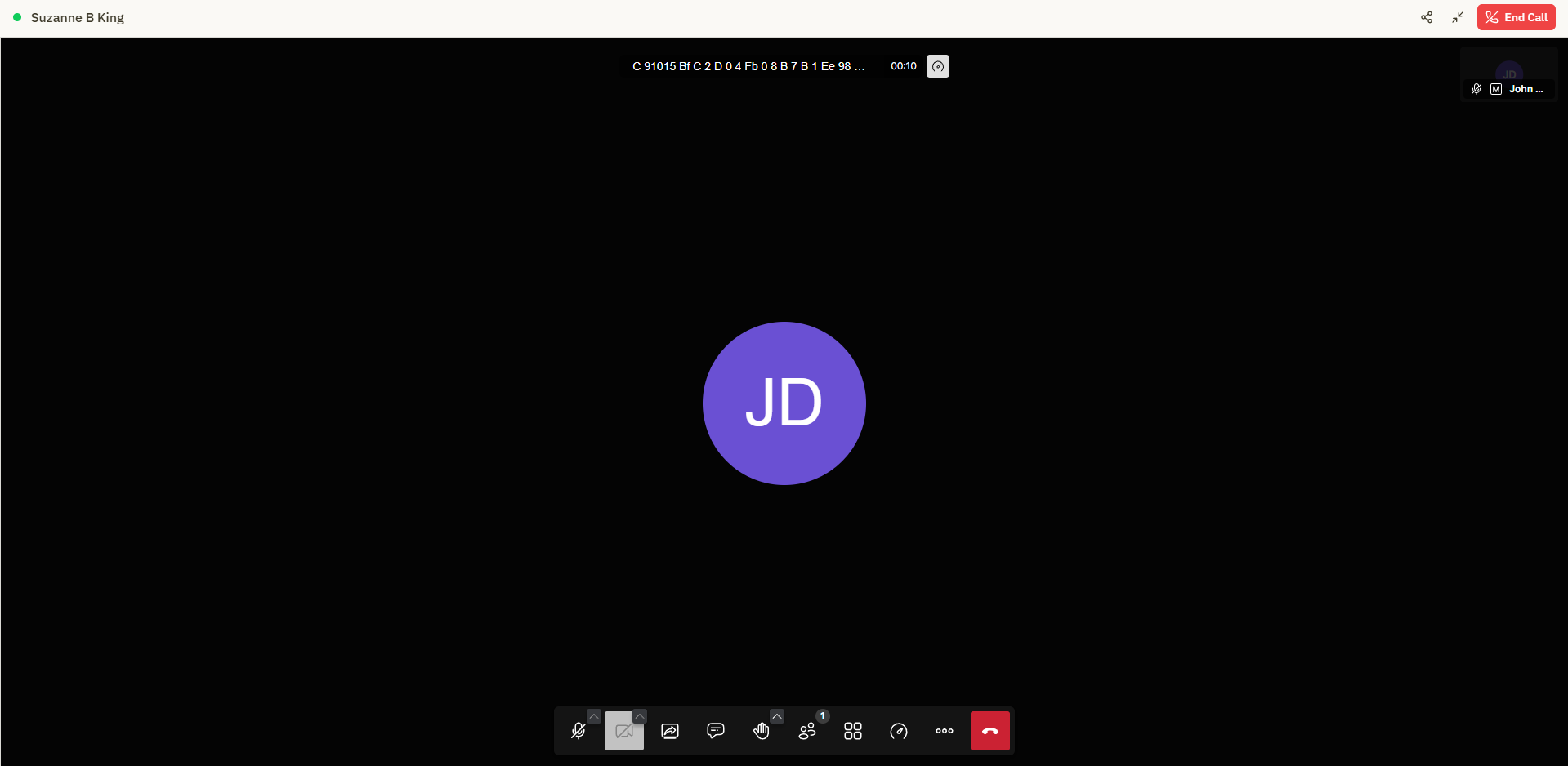
- The video meeting opens within the application.
Meeting controls
During the meeting, you have access to:
| Control | Description |
|---|---|
| Video on/off | Toggle your camera |
| Audio on/off | Toggle your microphone |
| Screen sharing | Share your screen with the patient |
| Chat | Send text messages during the call |
| Participants | See who is in the meeting |
| End call | End the meeting |
Minimize and restore
While in a meeting, you can:
- Minimize the meeting window to a small floating widget, allowing you to continue using the application while the call continues.
- Maximize or restore the meeting window at any time by clicking on the floating widget.
Patient experience (guest access)
Patients join the meeting through a simple guest experience:
- The patient opens the meeting link you shared.
- They enter a meeting lobby where they can verify the room name.
- They click "Join Meeting" to enter the call.
- After the meeting ends, a "Thanks for joining!" screen appears.
info
Patients do not need a Galy account to join a video meeting. The meeting link provides guest access.