Recurring Appointments
For patients who need regular visits, you can create recurring appointments that automatically repeat on a defined schedule. This saves you from manually creating each appointment.
Creating a recurring appointment
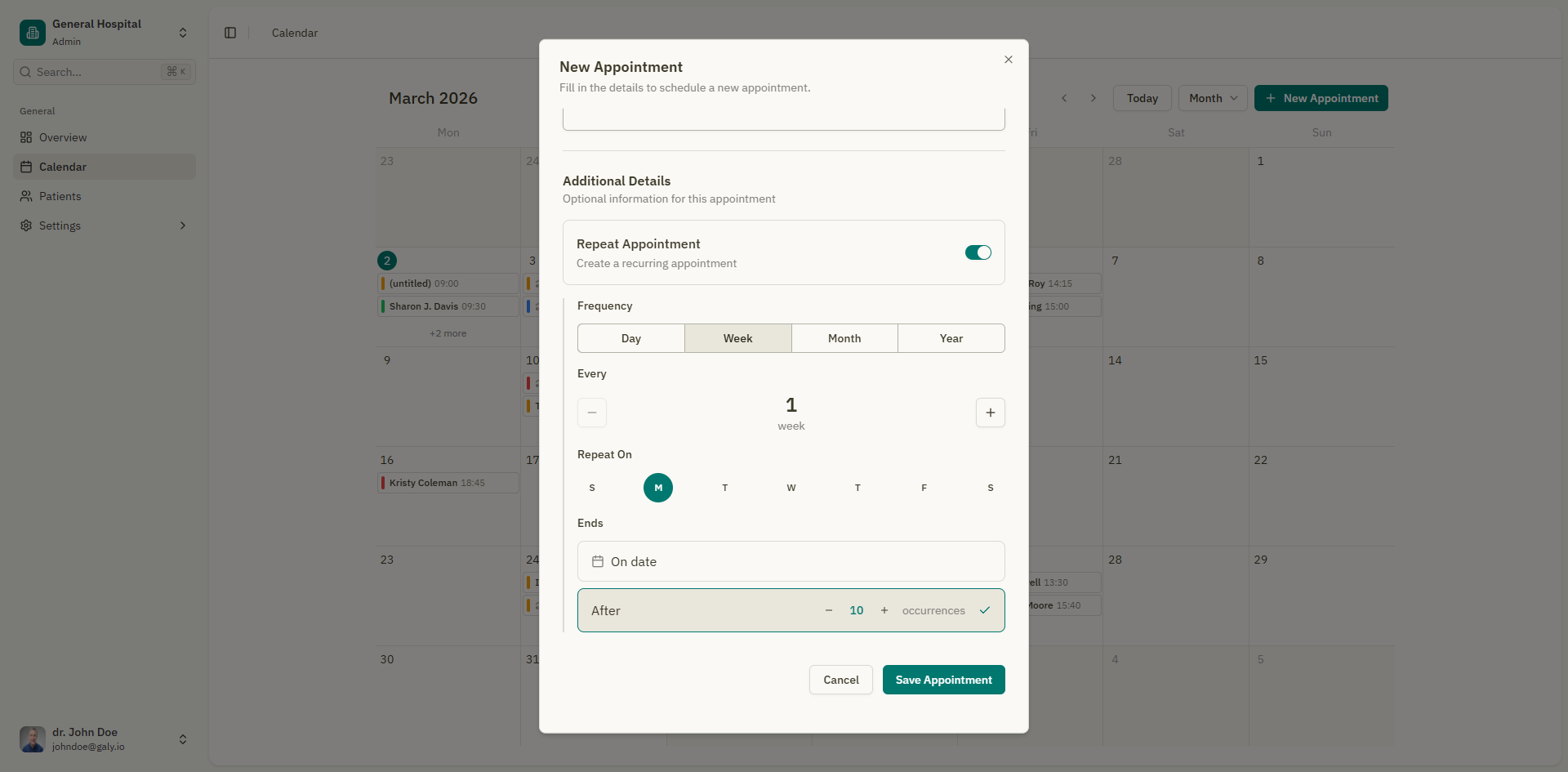
When creating or editing an appointment, expand the "Additional Details" section and enable the "Repeat Appointment" toggle.
Frequency
Choose how often the appointment should repeat:
| Frequency | Description | Example |
|---|---|---|
| Daily | Repeats every N days | Every 2 days |
| Weekly | Repeats every N weeks on specific days | Every 1 week on Monday and Wednesday |
| Monthly | Repeats every N months | Every 1 month |
| Yearly | Repeats every N years | Every 1 year |
Interval
Set the repetition interval using the "Every" field. For example:
- Every 1 week = weekly
- Every 2 weeks = bi-weekly
- Every 3 months = quarterly
Repeat on (weekly only)
When using weekly frequency, select which days of the week the appointment should occur:
| Sun | Mon | Tue | Wed | Thu | Fri | Sat |
|---|---|---|---|---|---|---|
| ○ | ○ | ○ | ○ | ○ | ○ | ○ |
Click on the day abbreviations to toggle them on or off.
End condition
Choose when the recurring series should stop:
| Option | Description |
|---|---|
| Never | The series continues indefinitely |
| On date | The series ends on a specific date you choose |
| After N occurrences | The series ends after a set number of appointments (e.g., after 10 occurrences) |
Examples
Weekly physical therapy
- Frequency: Weekly
- Every: 1 week
- Repeat on: Monday, Wednesday, Friday
- Ends: After 12 occurrences
Monthly follow-up
- Frequency: Monthly
- Every: 1 month
- Ends: On date (6 months from now)
Bi-weekly check-in
- Frequency: Weekly
- Every: 2 weeks
- Repeat on: Tuesday
- Ends: Never
Managing recurring appointments
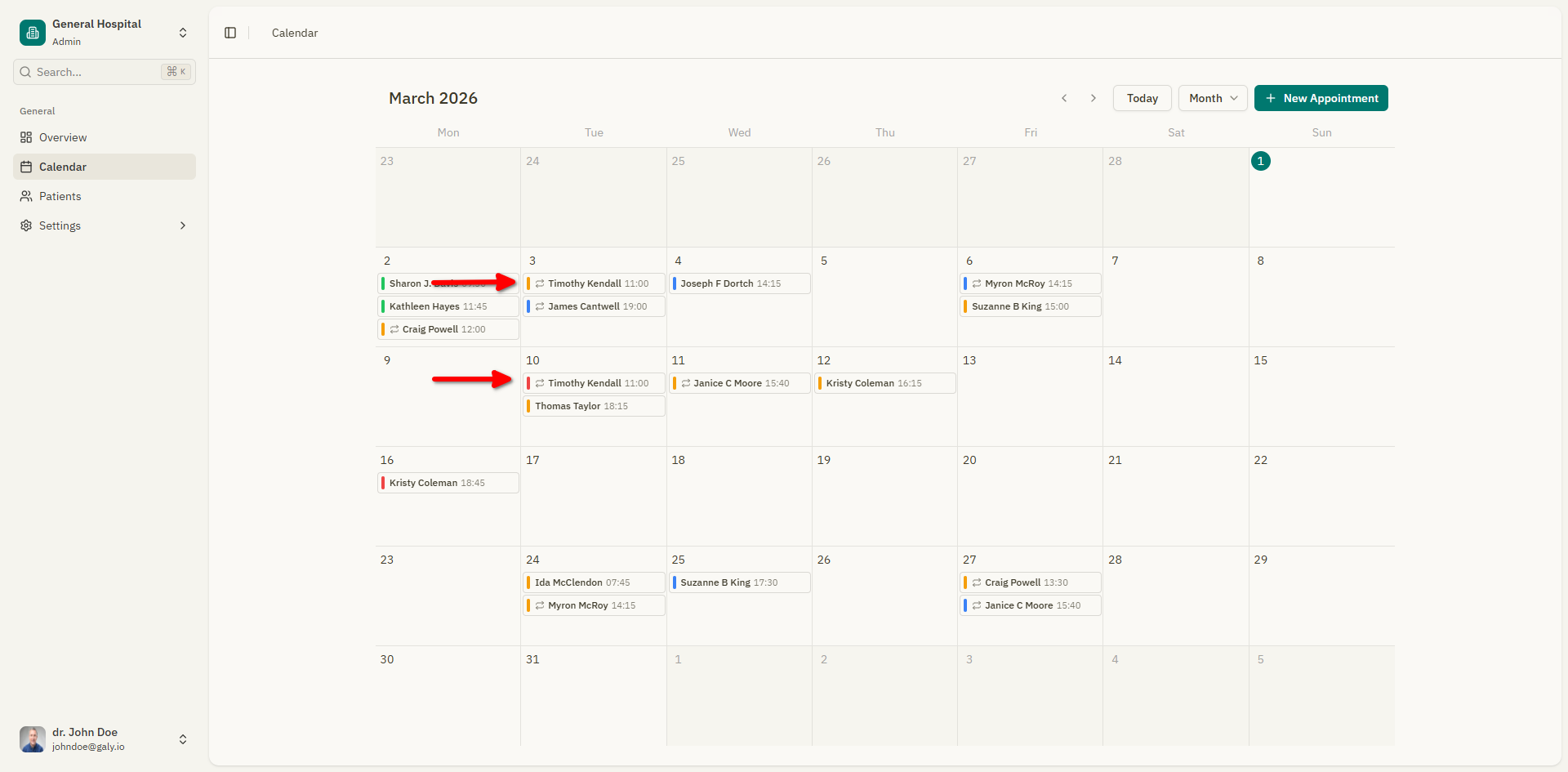
Once a recurring series is created, each occurrence appears as a separate appointment on the calendar. You can:
- Edit a single occurrence — Changes only affect that one appointment.
- Delete a single occurrence — Removes only that appointment from the series.
- Delete the entire series — Right-click on any occurrence and select "Delete Series" to remove all future appointments in the series.
Recurring appointments are visually marked on the calendar and in the appointment form with a recurring indicator.
Allow collision
By default, Galy warns you when a new appointment overlaps with an existing one. For recurring appointments, you can enable the "Allow Collision" toggle to skip overlap checks. This is useful when you intentionally schedule overlapping sessions (e.g., group appointments).