Navigating the Interface
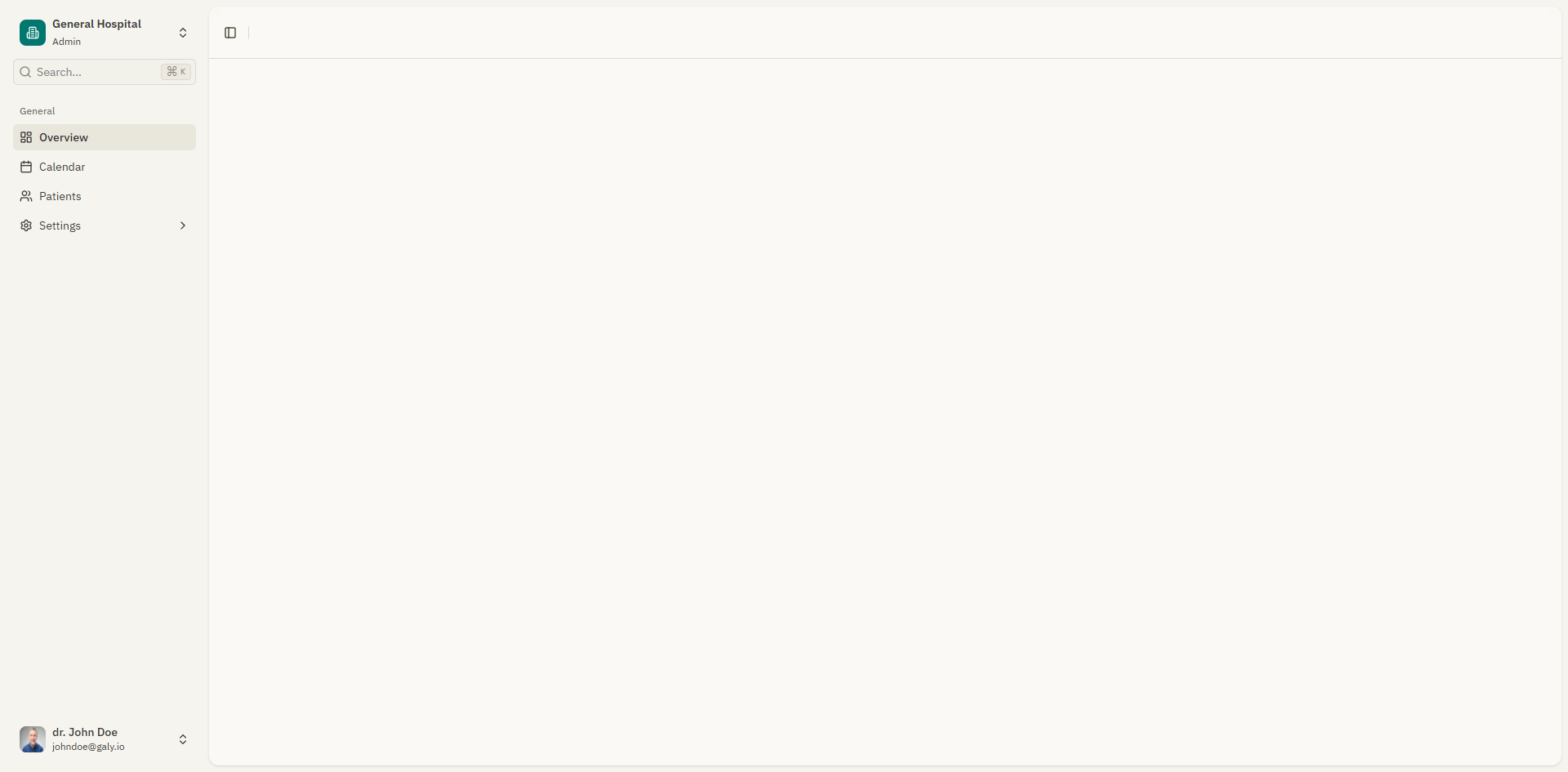
Galy's interface is organized around a sidebar navigation on the left and a main content area on the right. This page explains the key elements of the interface so you can move around efficiently.
Sidebar navigation
The sidebar is your main navigation tool. It contains the following sections:
Office switcher
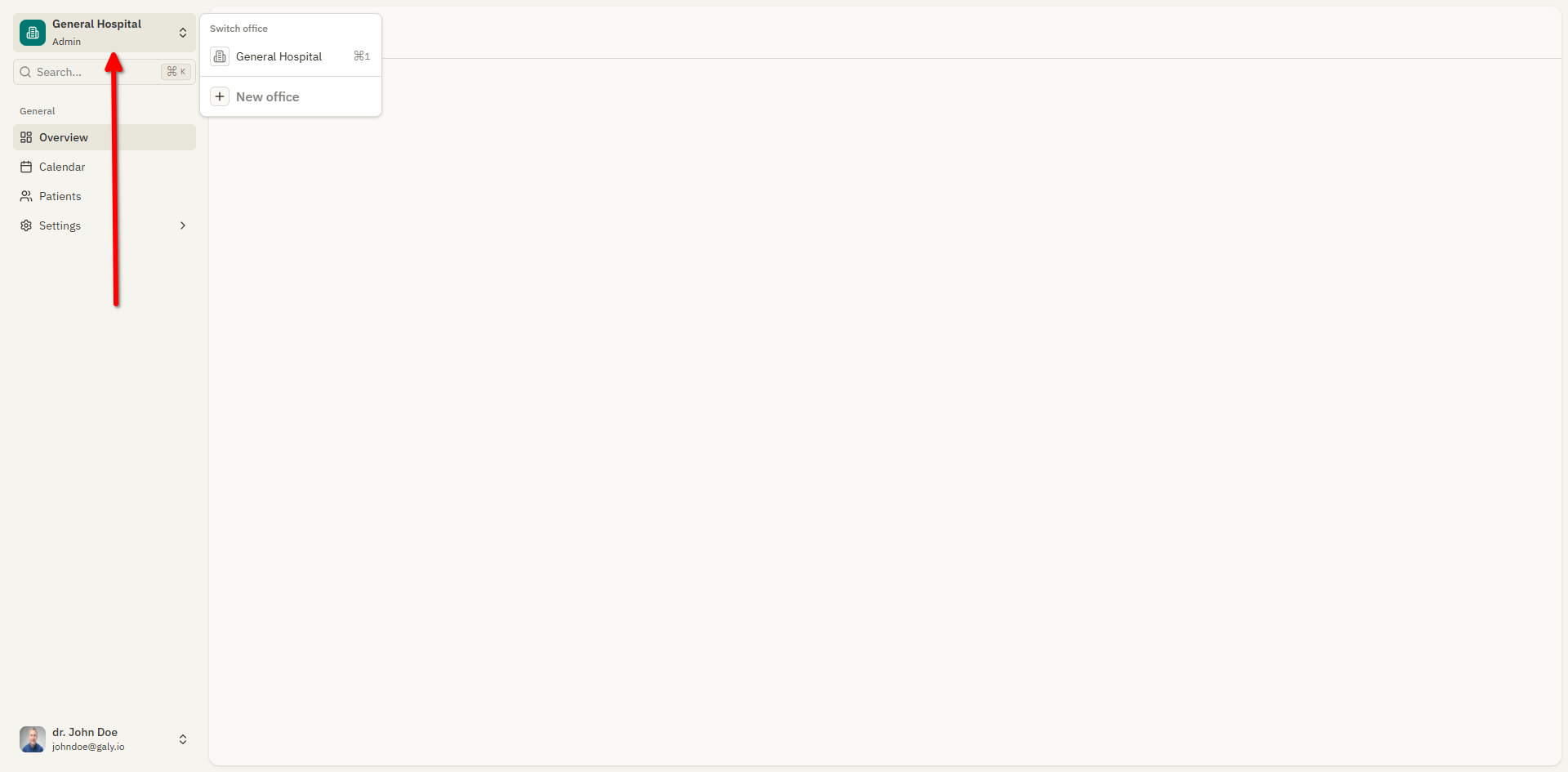
At the top of the sidebar, you'll see the name of your current medical office. Click on it to:
- Switch between offices if you belong to more than one.
- Create a new office by selecting "New office".
Main menu
Below the office switcher, you'll find the main navigation links:
| Menu item | Icon | Description |
|---|---|---|
| Overview | Layout icon | Dashboard with appointment statistics and recent appointments |
| Calendar | Calendar icon | Full calendar with month, week, day, and agenda views |
| Patients | Users icon | Patient list and patient management |
| Settings | Gear icon | Account, office, templates, and user management |
The Settings item expands to show sub-items:
- Account — Your personal profile and password
- Office — Office details, templates, and user management
Search
When the sidebar is expanded, a search bar appears at the top. Use it to quickly find patients, appointments, or navigate to specific pages.
User menu
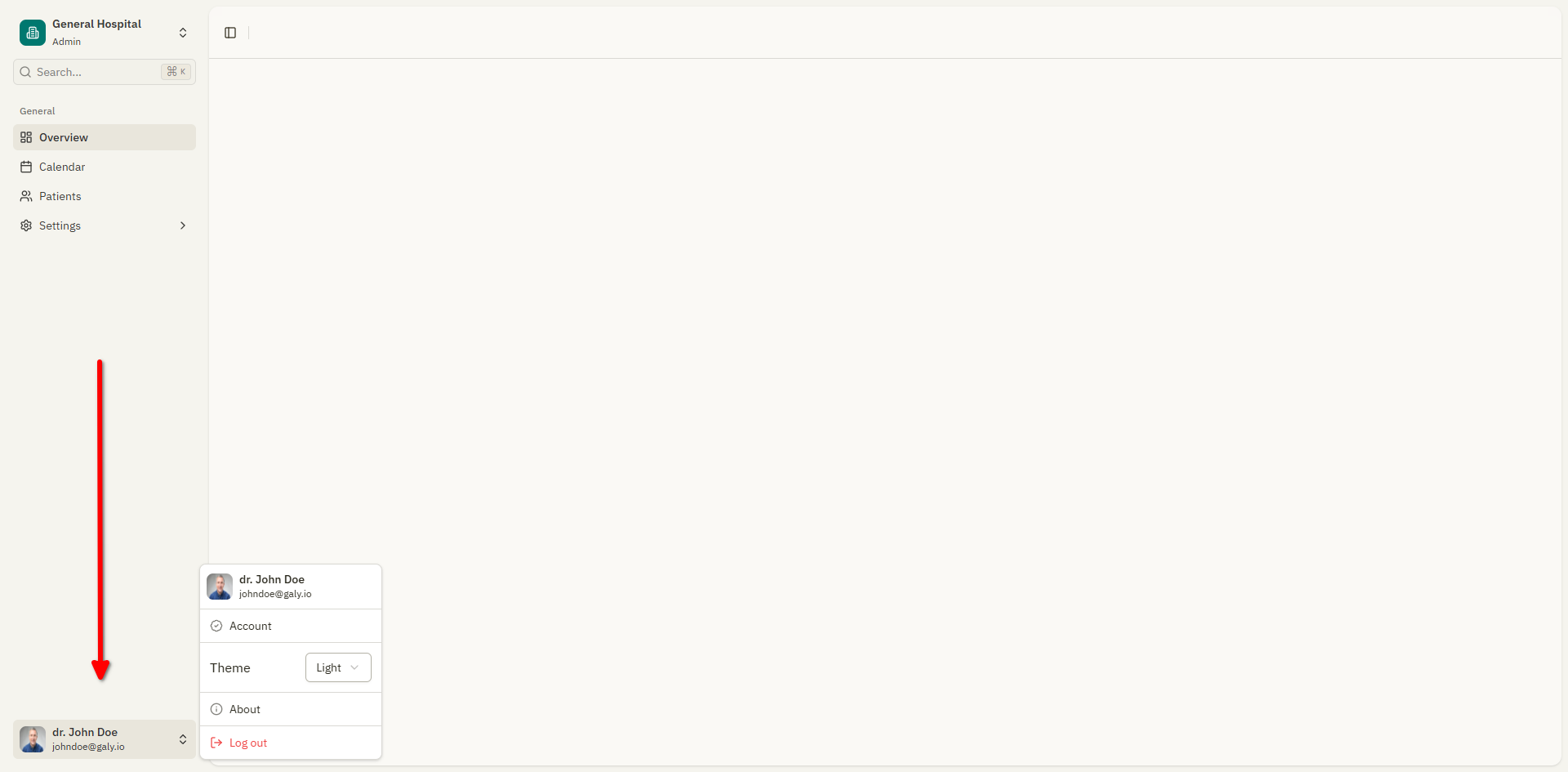
At the bottom of the sidebar, click on your avatar or name to access:
| Option | Description |
|---|---|
| Theme | Switch between Light, Dark, and System (auto) modes |
| Notifications | View your notifications |
| About | View application version, build date, and environment info |
| Log out | Sign out of your account |
Changing the theme
Galy supports three visual themes:
- Light — Light background with dark text.
- Dark — Dark background with light text.
- System — Automatically matches your device's appearance setting.
To change the theme:
- Click your name or avatar at the bottom of the sidebar.
- Select Theme.
- Choose Light, Dark, or System.
The theme changes immediately.
Breadcrumb navigation
At the top of most pages, a breadcrumb trail shows your current location in the application. Click on any breadcrumb item to navigate back to that section.
For example: Overview > Patients > John Doe tells you that you're viewing a patient's details, and you can click "Patients" to go back to the patient list.
Collapsing the sidebar
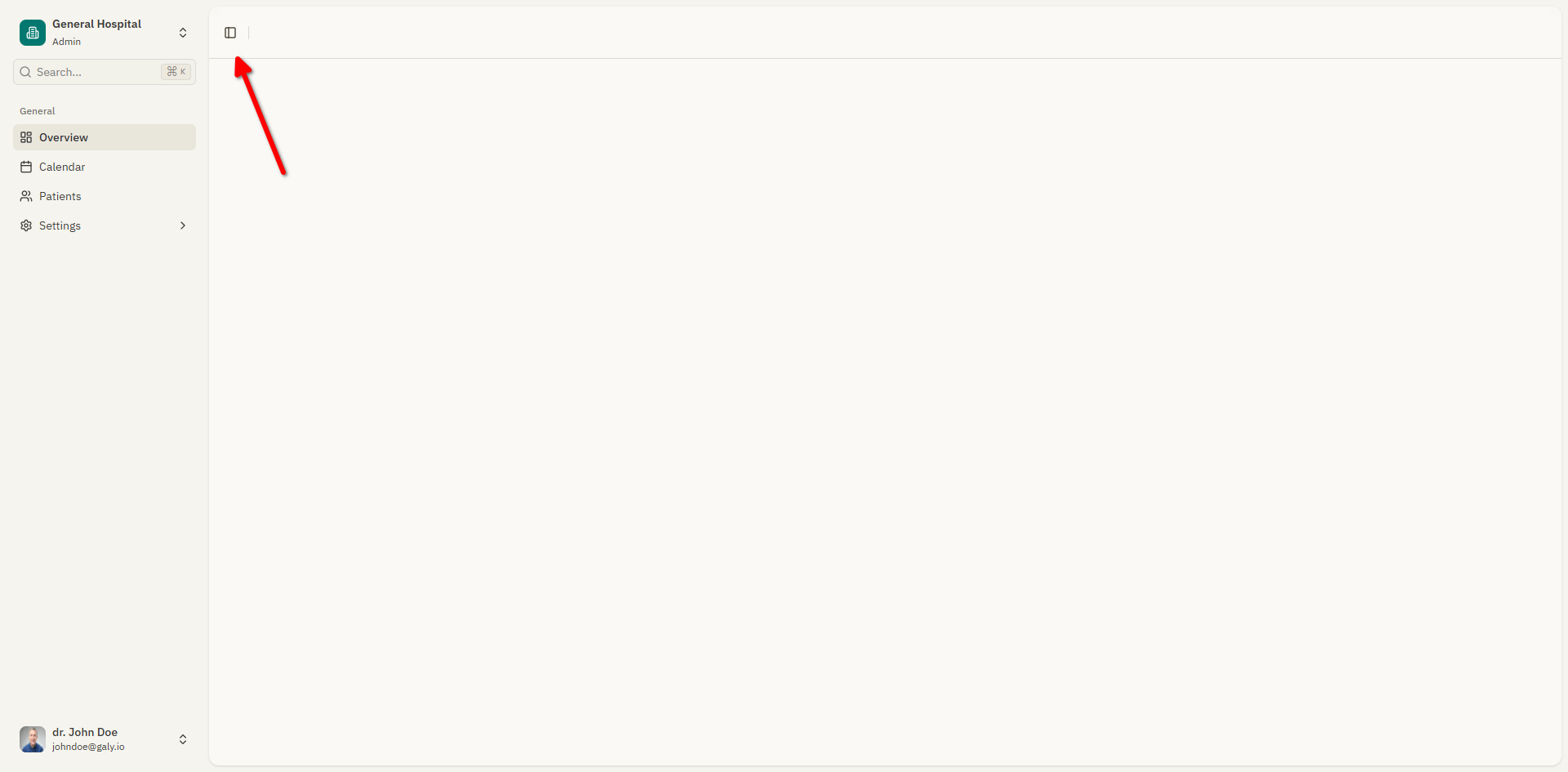
On smaller screens or if you prefer more space for the main content, you can collapse the sidebar by clicking the toggle button at the top of the sidebar. This minimizes the sidebar to show only icons.
Switching language
Galy supports English and Spanish. To change the language:
- The language setting is available in the account settings.
- Changing the language updates all text throughout the application immediately.
You can also change the documentation language using the language dropdown in the top-right corner of this documentation site.