Office Settings
The Office tab under Settings lets you manage the details of your medical office. This includes the office name, phone number, and address.
To access it, go to Settings > Office and select the "Office" tab.
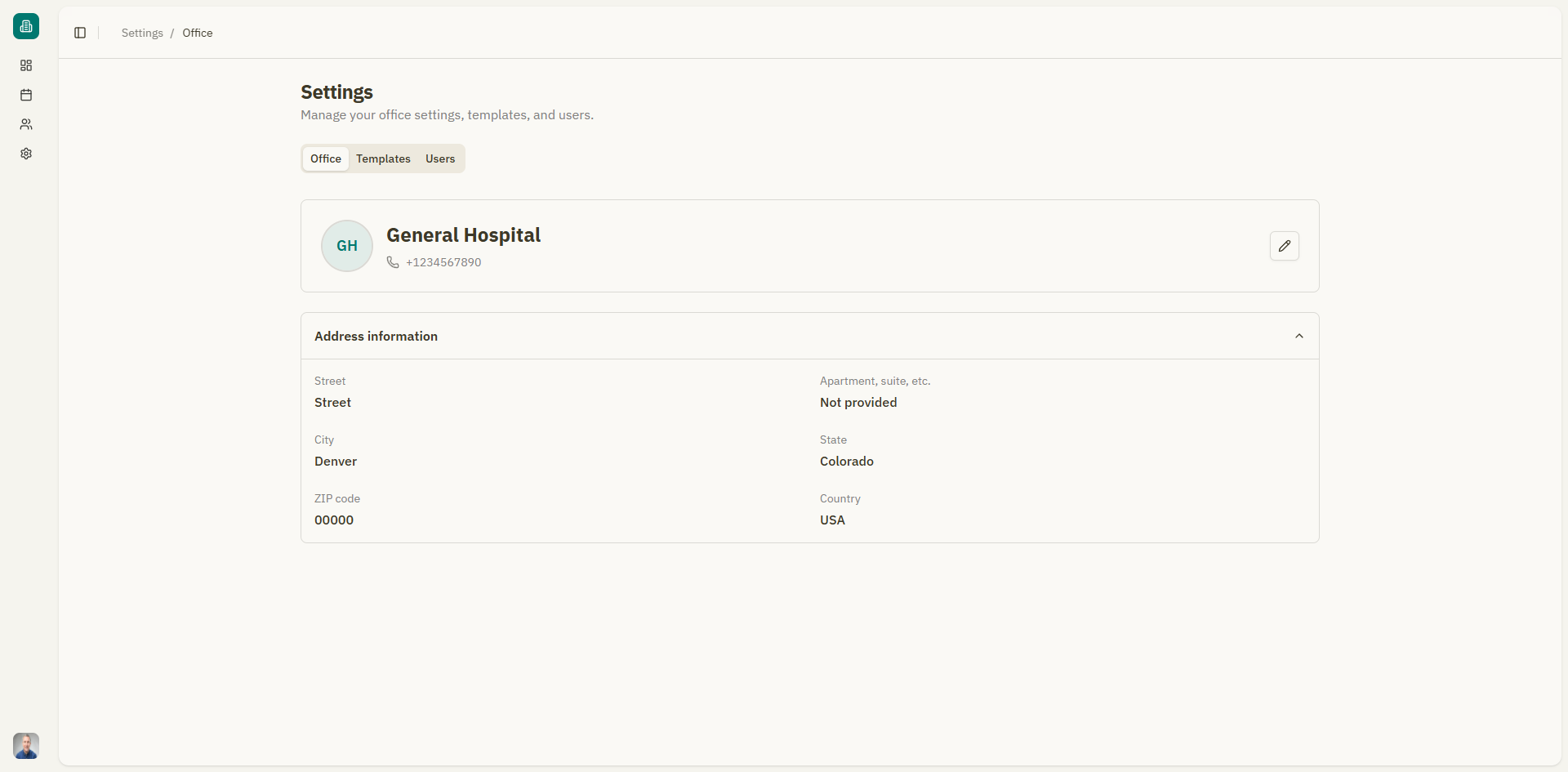
Office information
General information
| Field | Description | Required |
|---|---|---|
| Office name | The name of your medical office or clinic | Yes |
| Phone number | Office phone number with country code | Yes |
Address information
| Field | Description | Required |
|---|---|---|
| Country | Country where the office is located | Yes |
| State | State or province | Yes |
| City | City | Yes |
| Street | Street address | Yes |
| Apartment, suite, etc. | Additional address details | No |
| ZIP code | Postal code | Yes |
Updating office details
- Modify any of the fields.
- Click "Save changes".
- A success notification confirms: "Office updated successfully".
Managing multiple offices
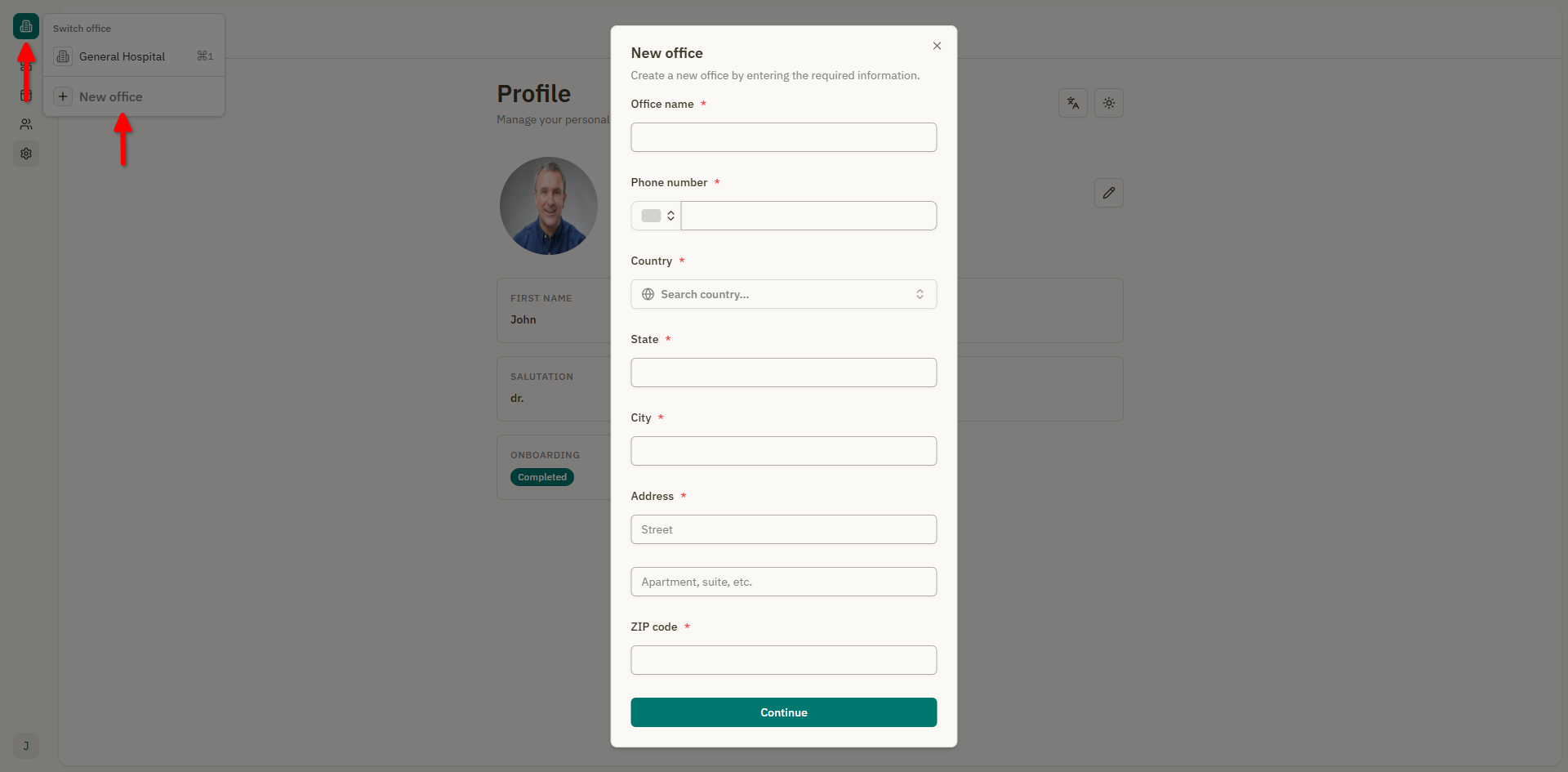
Galy supports multiple offices. You can switch between offices or create new ones using the office switcher at the top of the sidebar.
Switching offices
- Click the office name at the top of the sidebar.
- A dropdown shows all offices you have access to.
- Select the office you want to work in.
All data (patients, appointments, templates, etc.) is specific to the currently selected office.
Creating a new office
- Click the office name at the top of the sidebar.
- Select "New office".
- Fill in the office details (same fields as above).
- Click "Save" to create the office.
info
Each office has its own set of patients, appointments, templates, and team members. Switching offices changes the context of the entire application.