Calendar Overview
The Calendar is the central tool for managing your appointment schedule. It displays all your appointments in an interactive view and gives you quick access to create, edit, reschedule, and manage appointment statuses.
Calendar views
The calendar offers four different views. Switch between them using the buttons in the top-right corner:
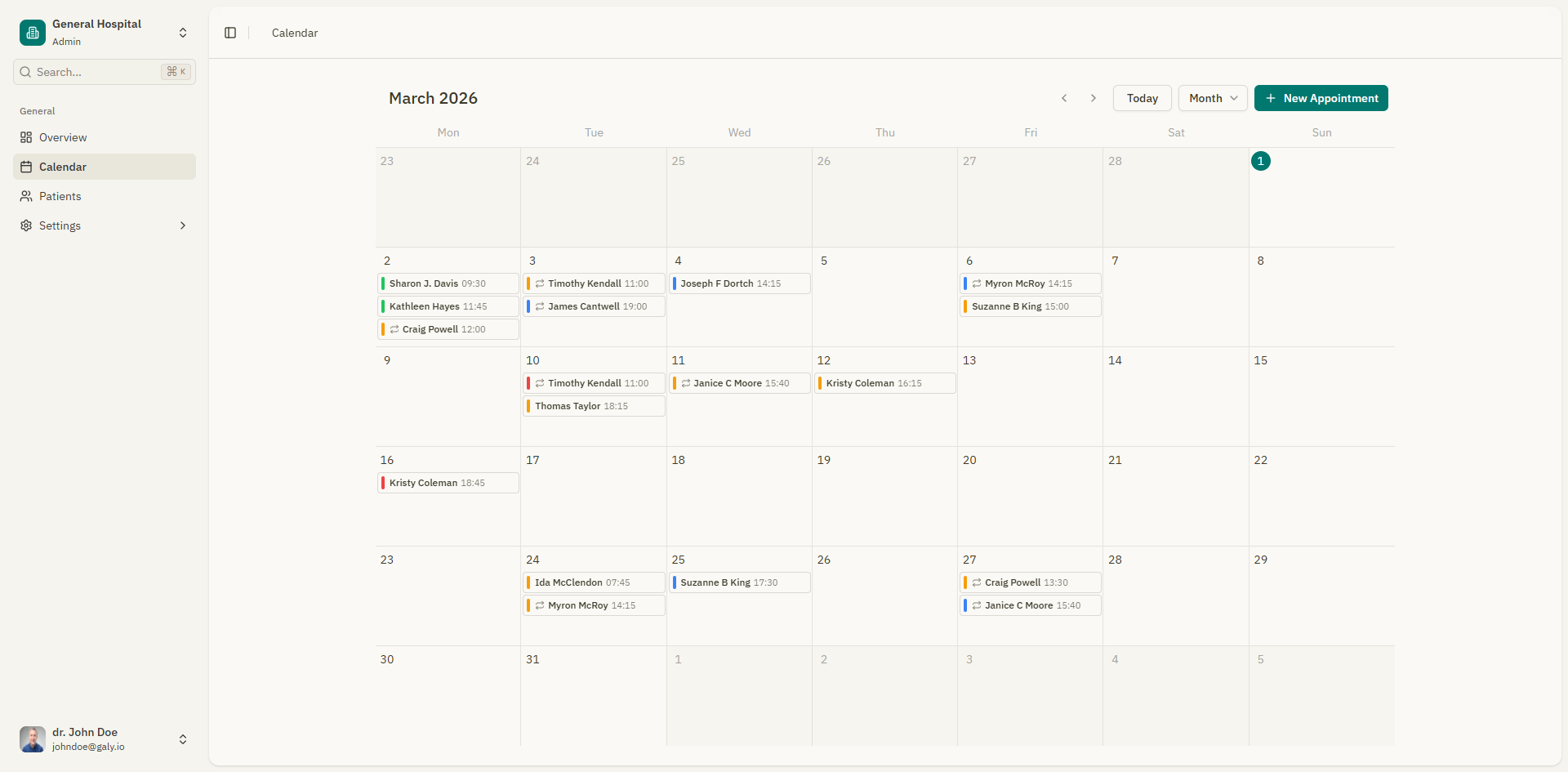
Month view
Shows a full month grid with appointments displayed as colored blocks on each day. This is the default view.
- Each appointment shows the patient's name and time.
- Days with more appointments than the cell can display show a "+N more" link. Click it to see all appointments for that day.
- Click on an empty area of any day to quickly create a new appointment for that date.
Week view
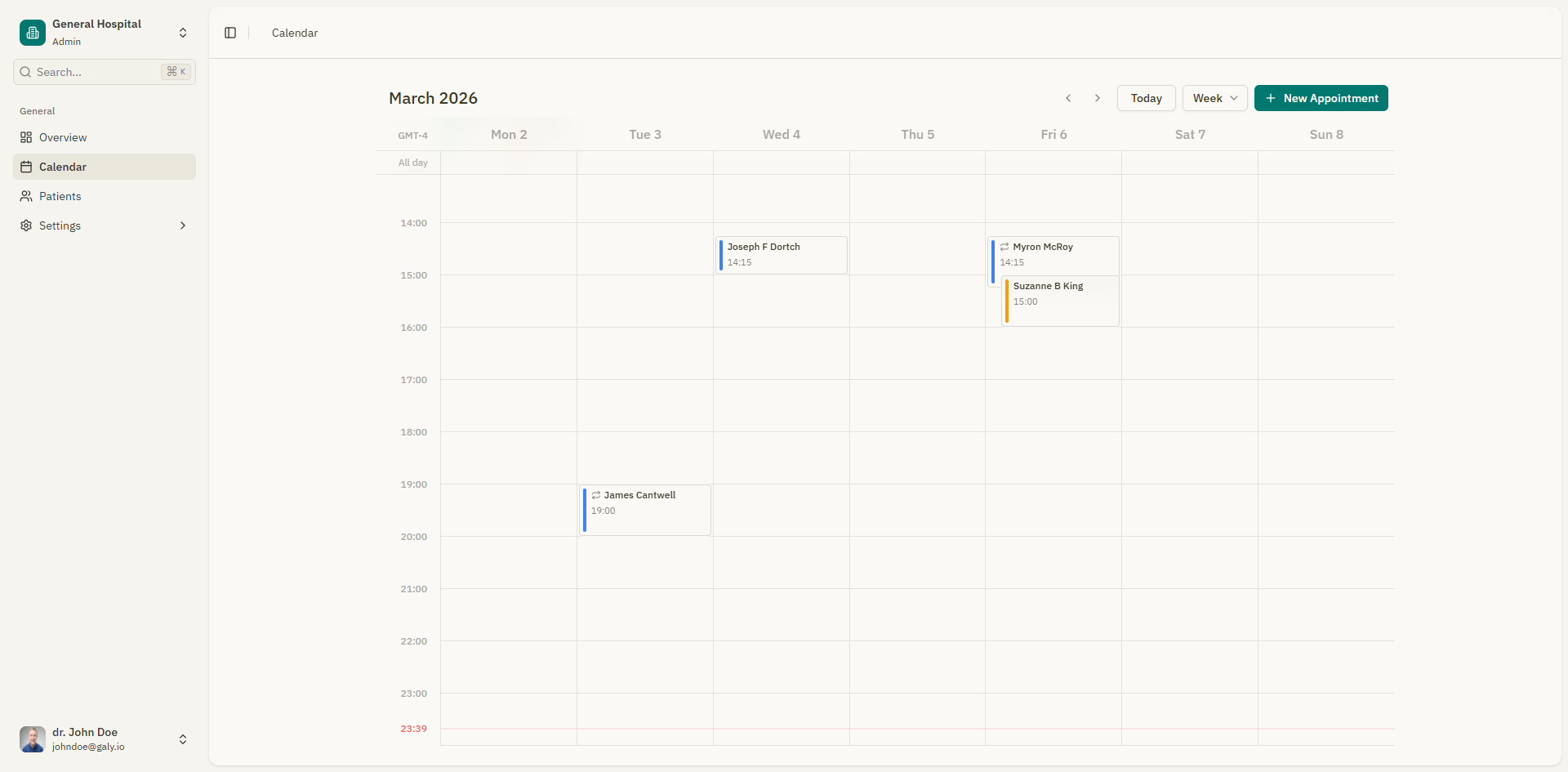
Displays a 7-day view with a time grid. Each appointment occupies a time slot based on its scheduled start and end times.
-
Hours are displayed on the left side.
-
Click and drag on an empty time slot to create a new appointment.
-
Appointments are color-coded by status.
Day view
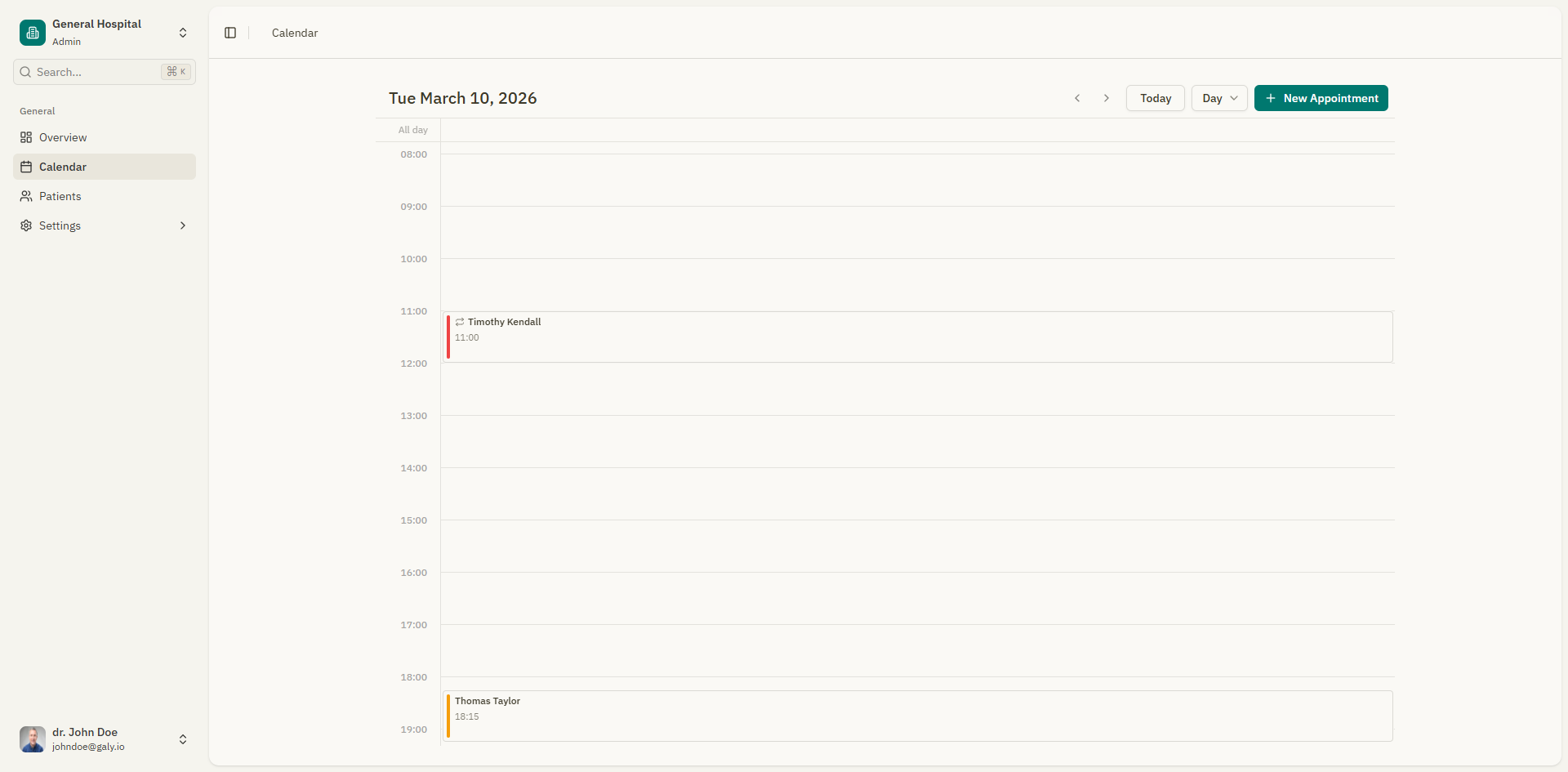
Shows a single day with a detailed time grid. Useful for reviewing a busy day.
- Similar to week view but focused on one day.
- Ideal for managing back-to-back appointments.
Agenda view
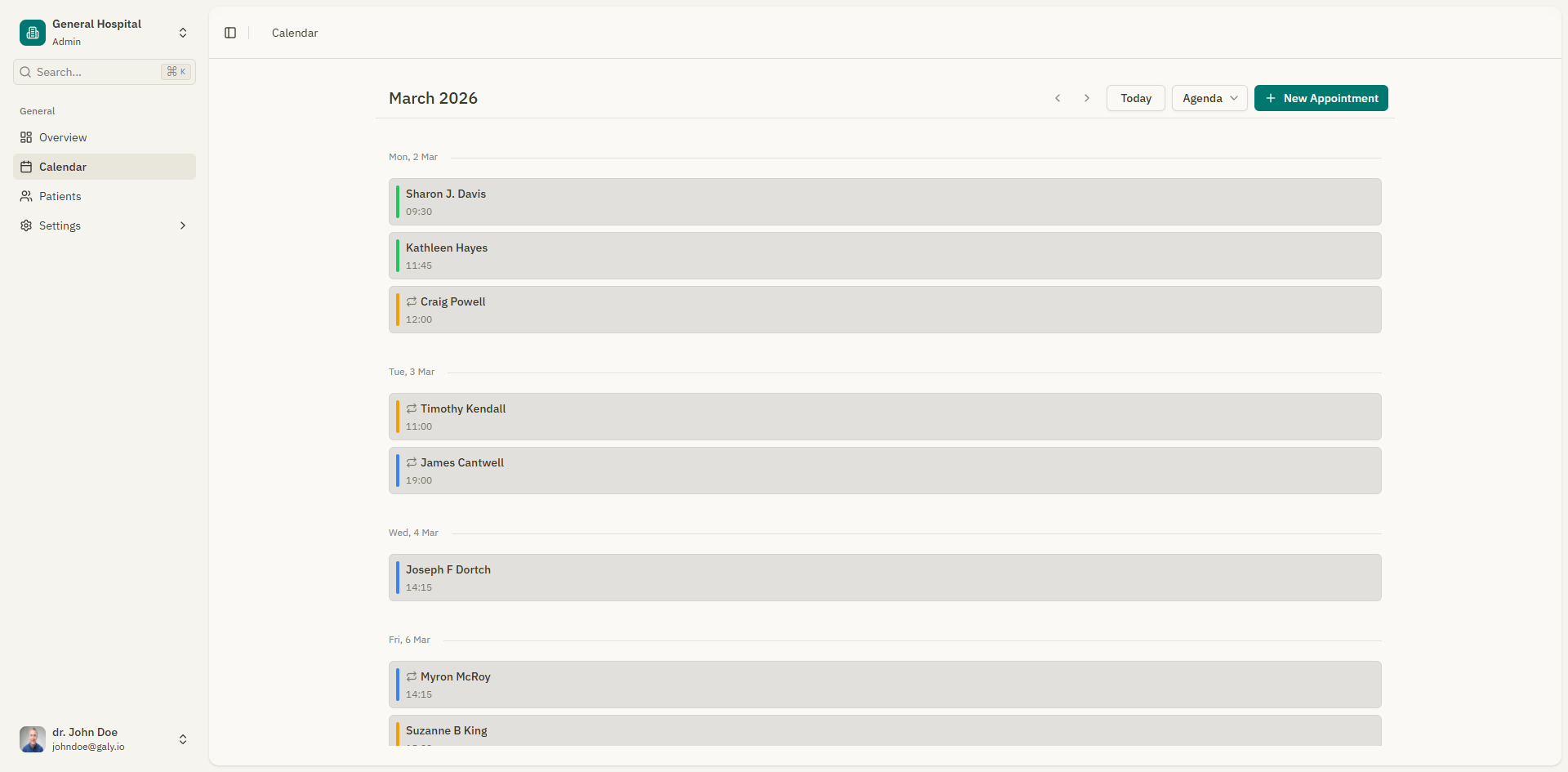
Shows appointments in a flat list format, sorted chronologically. This is the most compact view and works well for getting a quick overview of upcoming appointments.
- Each row shows the appointment time, patient name, status, and description.
- When there are no appointments for the selected period, a message says "No appointments found".
Calendar navigation
Use the navigation controls in the top-left corner of the calendar:
| Control | Action |
|---|---|
| < (Previous) | Navigate to the previous month/week/day |
| > (Next) | Navigate to the next month/week/day |
| Today | Jump back to the current date |
The current date range is displayed between the navigation buttons (e.g., "February 2026" in month view).
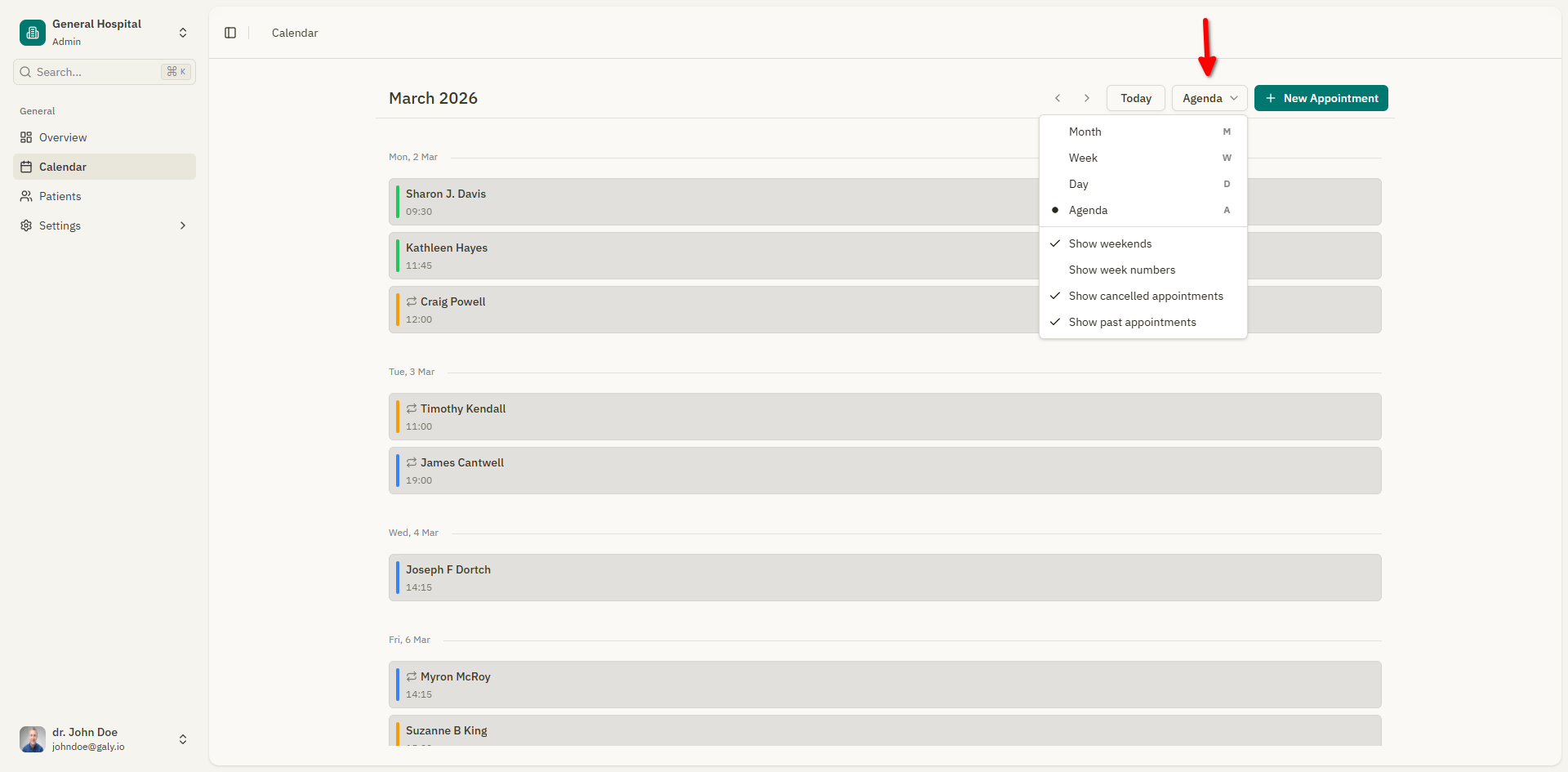
Calendar preferences
Click the preferences button (gear icon) to customize how the calendar looks:
| Preference | Description |
|---|---|
| Show weekends | Toggle Saturday and Sunday visibility |
| Show week numbers | Display week numbers on the left side of the calendar |
| Show cancelled appointments | Show or hide cancelled appointments |
| Show past appointments | Show or hide appointments that have already passed |
Appointment status colors
Appointments are color-coded based on their current status:
| Status | Color | Meaning |
|---|---|---|
| Pending | Amber | Appointment is waiting for confirmation |
| Confirmed | Blue | Appointment has been confirmed |
| Attended | Green | Patient has been seen |
| Cancelled | Red | Appointment was cancelled |
Quick actions from the calendar
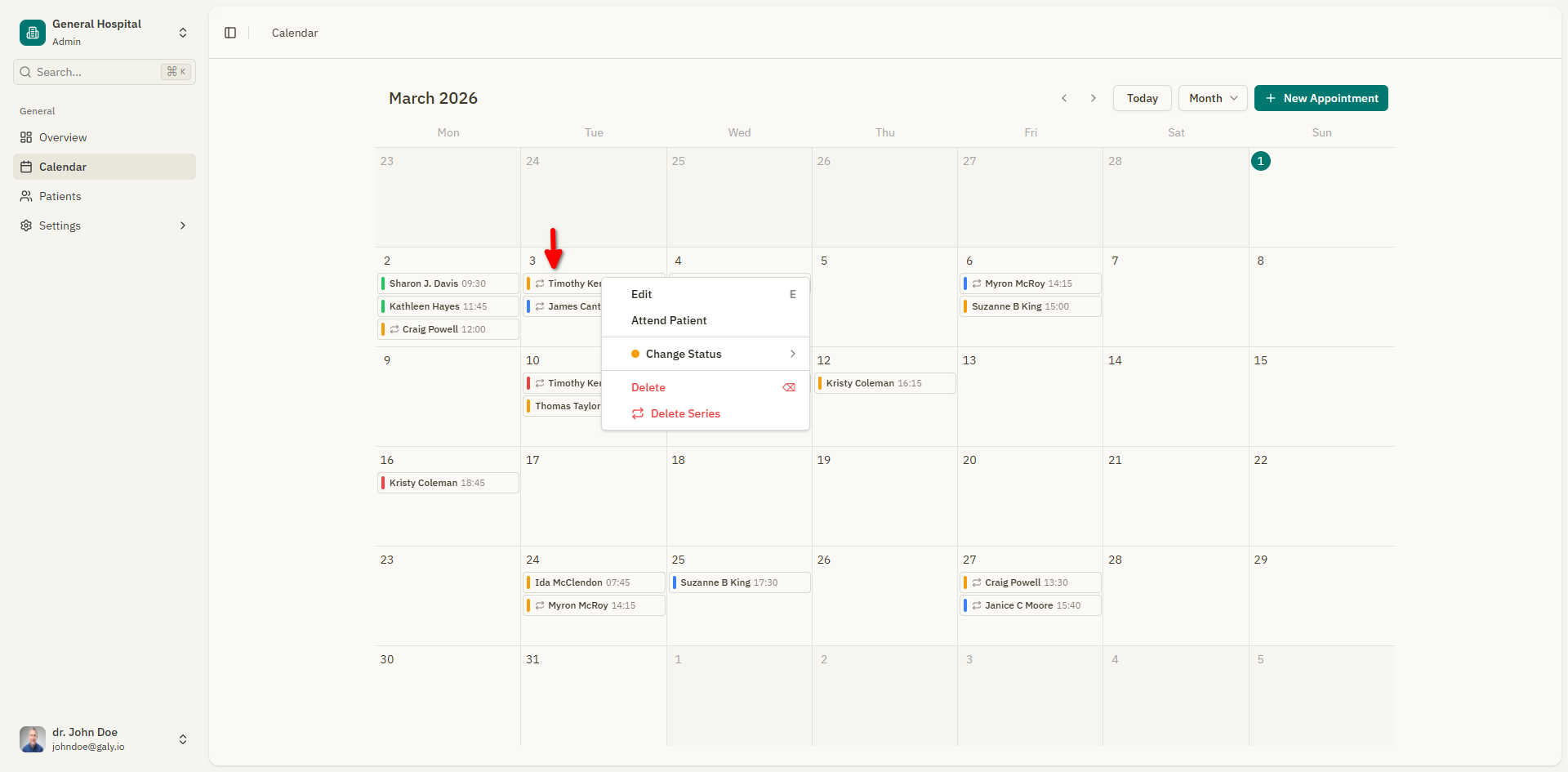
Right-click (or long-press on mobile) on any appointment to open a context menu with quick actions:
| Action | Description |
|---|---|
| Edit | Open the appointment form to modify details |
| Change Status | Update the appointment status (Pending, Confirmed, Attended, Cancelled) |
| Attend Patient | Mark the appointment as attended and go to the consultation |
| Delete | Delete the appointment (with confirmation) |
| Delete Series | Delete all appointments in a recurring series |