Patient Details
The patient details page shows all information about a specific patient, including personal data, medical history, appointment metrics, and a list of their appointments.
To open it, click on any patient in the patient list or select "View details" from the row actions menu.
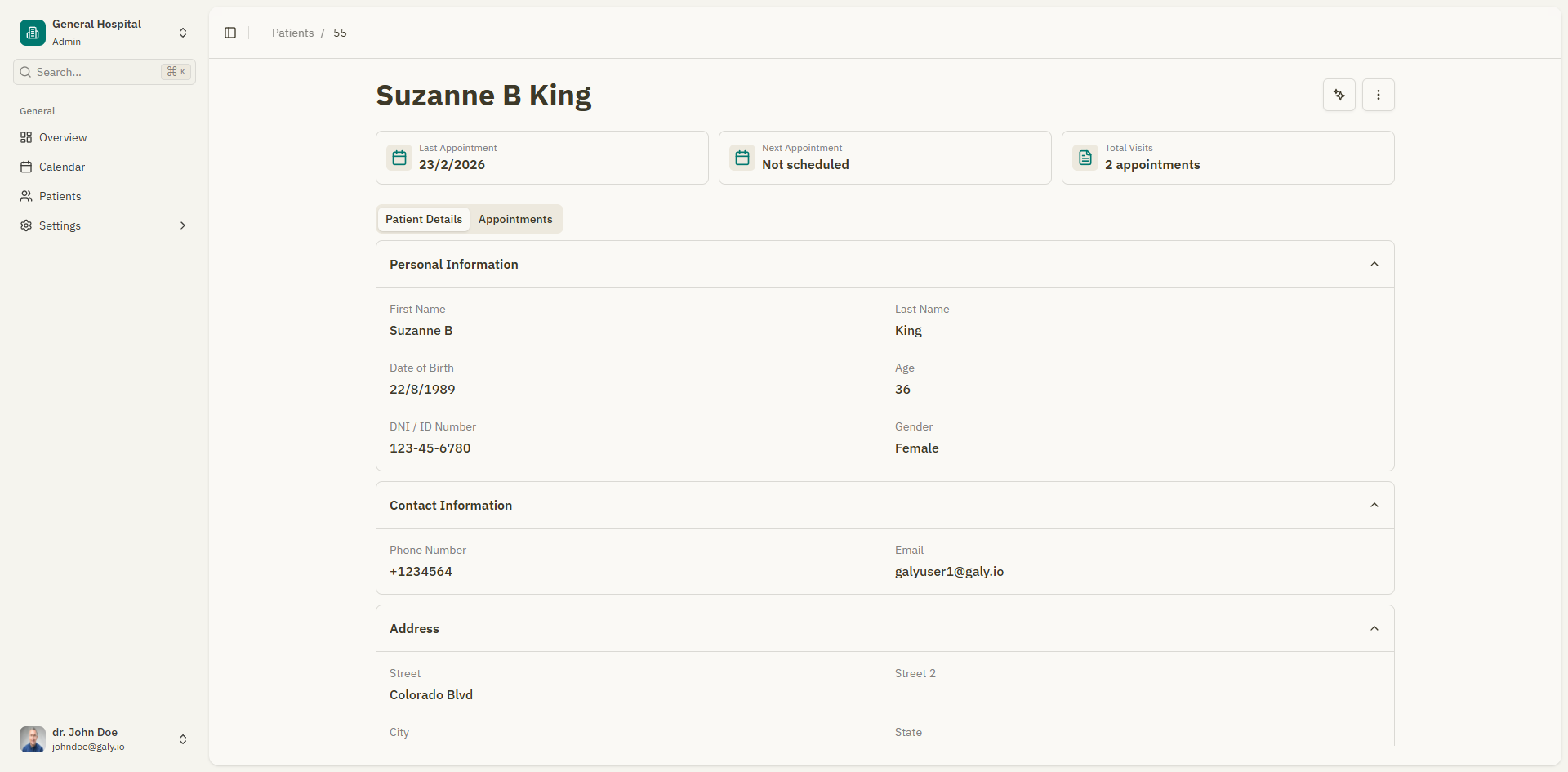
Patient header
At the top of the page, you'll see:
- Patient name with their salutation (if applicable)
- Patient ID
- Phone number, email, and location (if available)
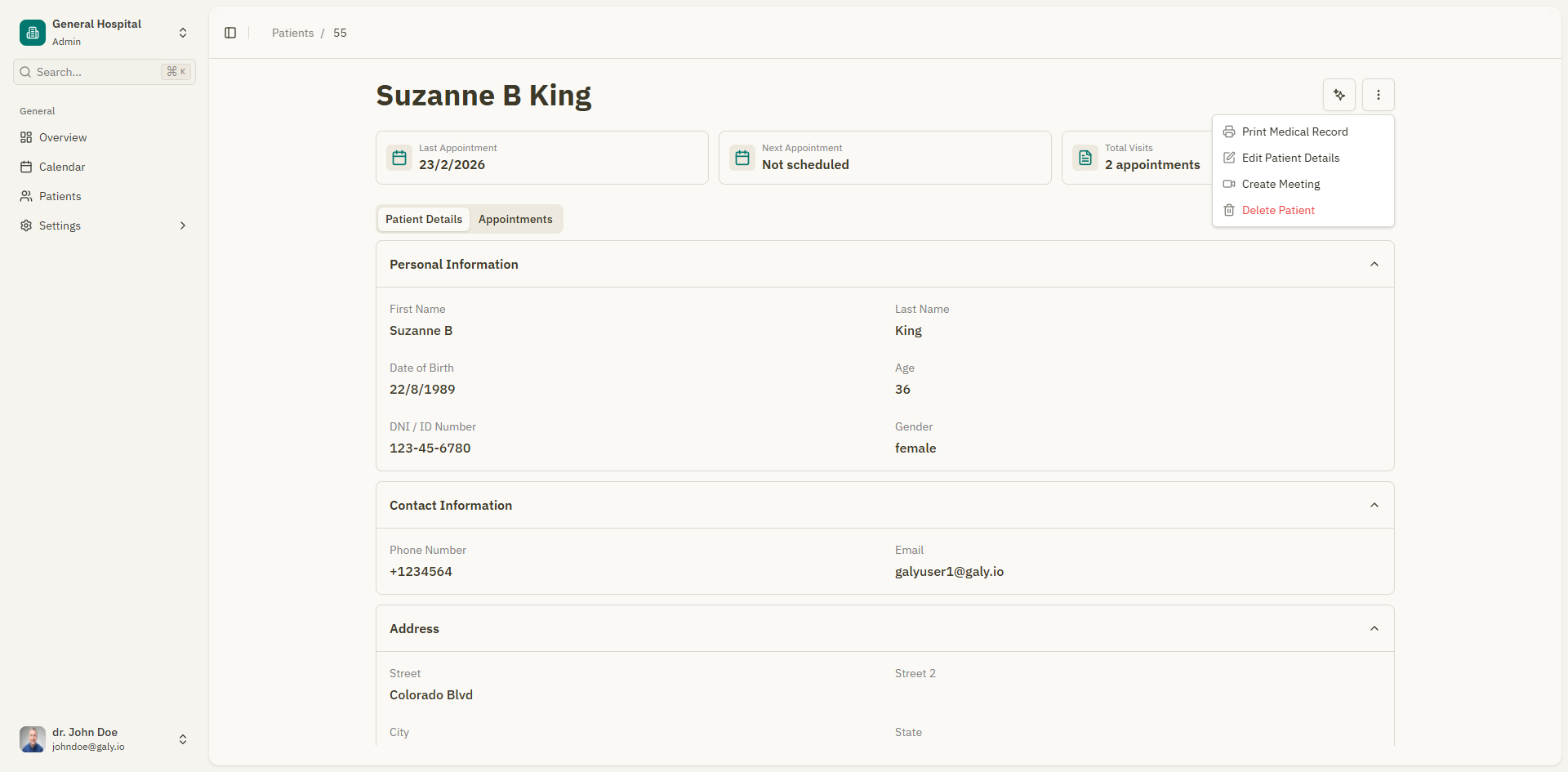
Header actions
The action buttons in the header allow you to:
| Action | Description |
|---|---|
| Print Medical Record | Generate a PDF with the patient's complete information. See Medical Record PDF. |
| Create New Appointment | Schedule a new appointment for this patient. Opens the appointment form. |
| Edit Patient Details | Open the patient form to update their information. |
| Delete Patient | Permanently delete the patient and all associated data. |
Patient metrics
Below the header, a set of metric cards provides a quick overview:
| Metric | Description |
|---|---|
| Last Appointment | Date of the most recent appointment, or "Never" if none exist |
| Next Appointment | Date of the next scheduled appointment, or "Not scheduled" |
| Total Visits | Total number of completed appointments (e.g., "5 appointments") |
| Blood Type | Patient's blood type, if recorded |
| Allergies | Known allergies, if recorded |
Tabs
The patient details page has two tabs:
Details tab
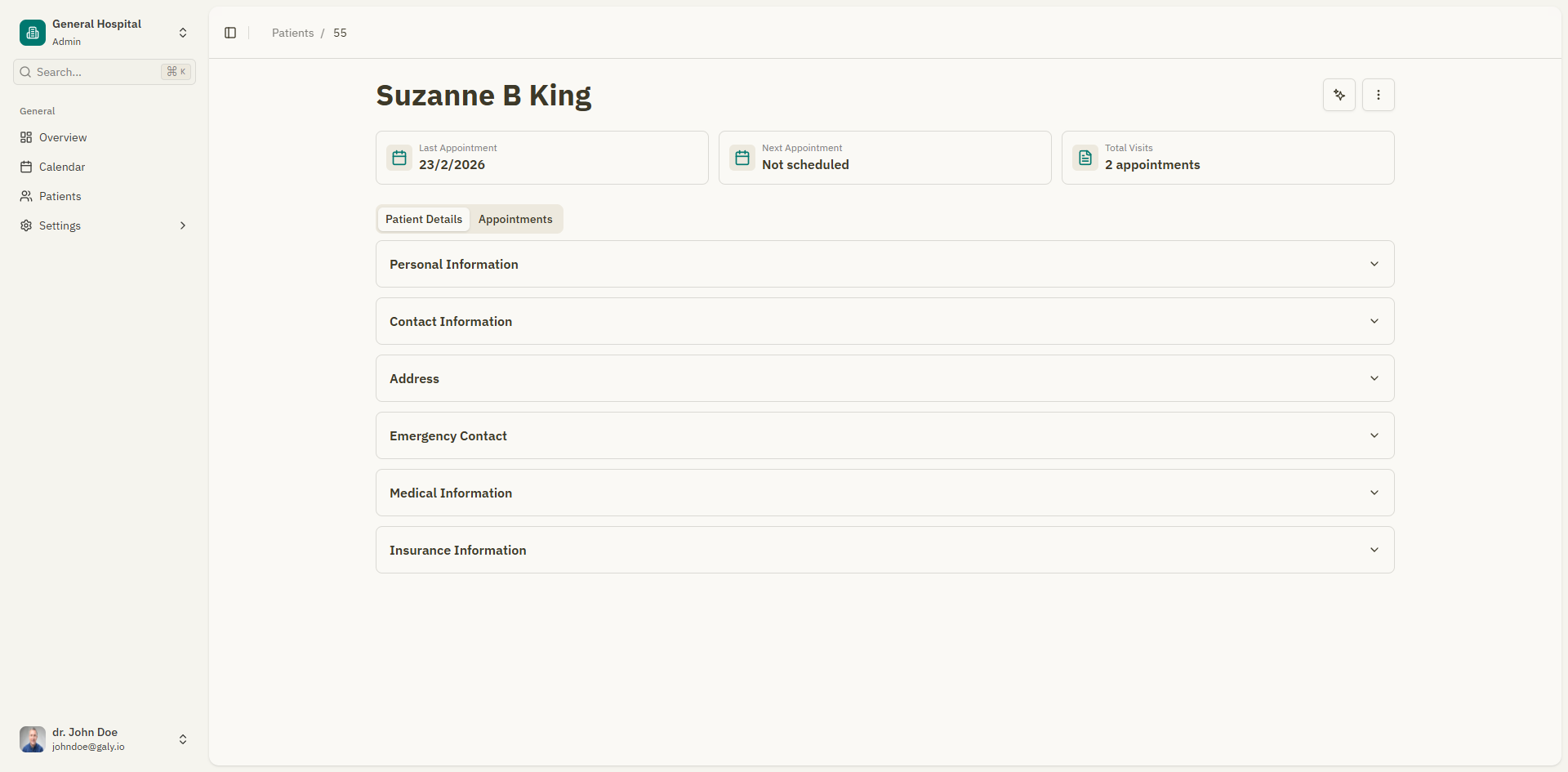
Shows all patient information organized into sections:
Personal Information
- First name, last name, date of birth, age (calculated automatically), DNI, and gender.
Contact Information
- Phone number and email address.
Address
- Street, street 2, city, state, ZIP code, and country.
Emergency Contact
- Contact name and phone number.
Medical Information
- Blood type, allergies, current medications, and referred by.
Insurance Information
- Insurance provider and policy number.
Fields that have not been filled in show "Not provided".
Editing patient details
To update any patient information:
- Click the "Edit Patient Details" button in the header.
- The patient form opens with all current data pre-filled.
- Make your changes.
- Click "Save Patient".
Only the fields you changed are updated.
Appointments tab
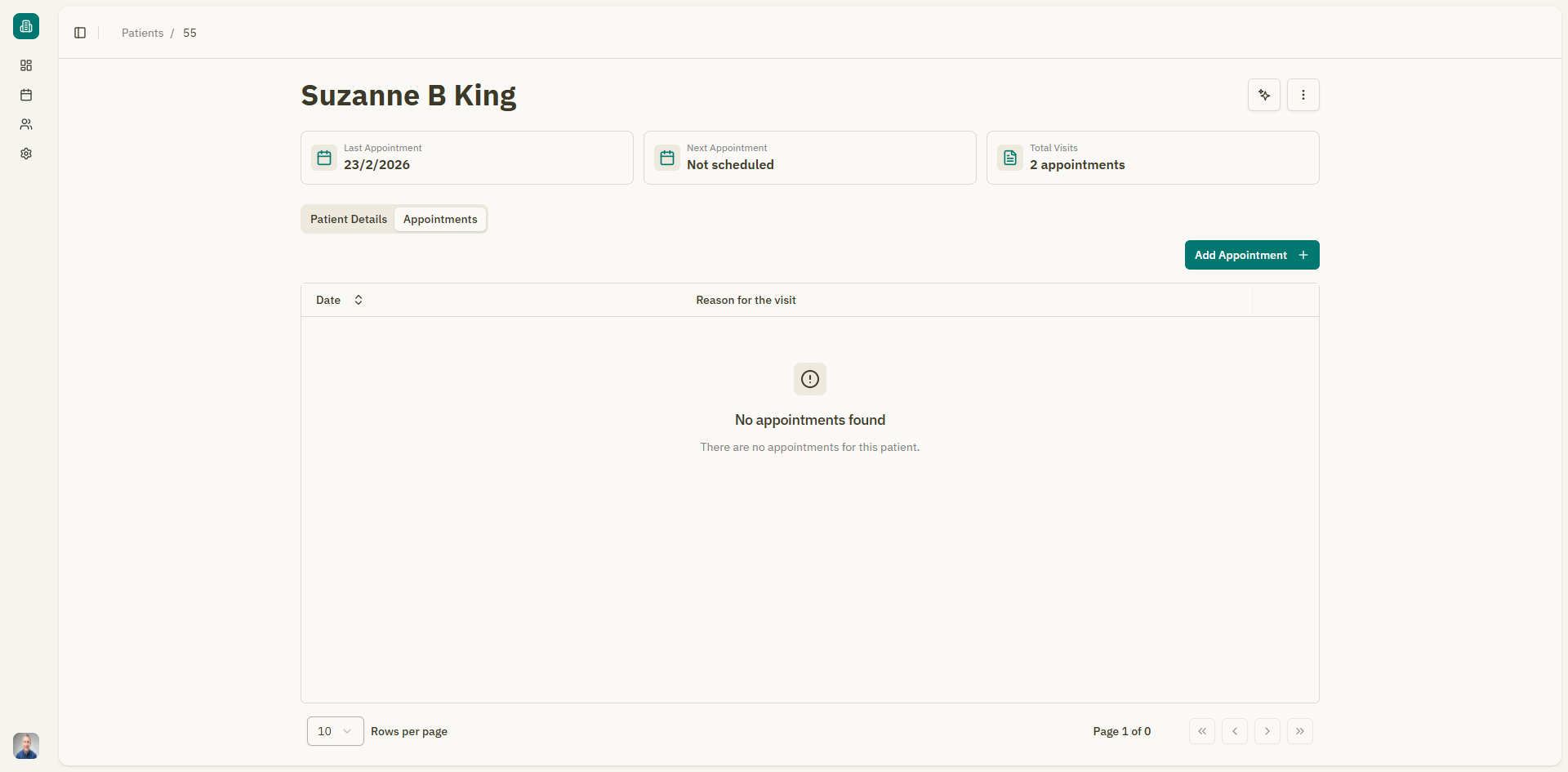
Shows a table of all appointments for this patient with the following columns:
| Column | Description |
|---|---|
| Date | Appointment date |
| Description | Reason for the visit |
| Status | Current status (Pending, Confirmed, Attended, Cancelled) |
| Actions | View details or delete |
Click on any appointment to open the appointment details page with the consultation editor, prescriptions, and attachments.
Creating an appointment from here
Click the "Add Appointment" button to schedule a new appointment for this patient. The patient will be pre-selected in the appointment form.
Empty state
If the patient has no appointments yet, a message says "No appointments yet" with a prompt to create the first one.
AI-powered visit summary
On the details tab, the "Last Visit Summary" section provides an AI-generated summary of the patient's most recent consultation. See AI Summary for details.
Deleting a patient
To delete a patient from the details page:
- Click the "Delete Patient" button in the header.
- A confirmation dialog appears.
- Type "DELETE" to confirm.
- Click "Delete".
This action is permanent. All patient data, appointments, prescriptions, and attachments will be removed.