Creating a Patient
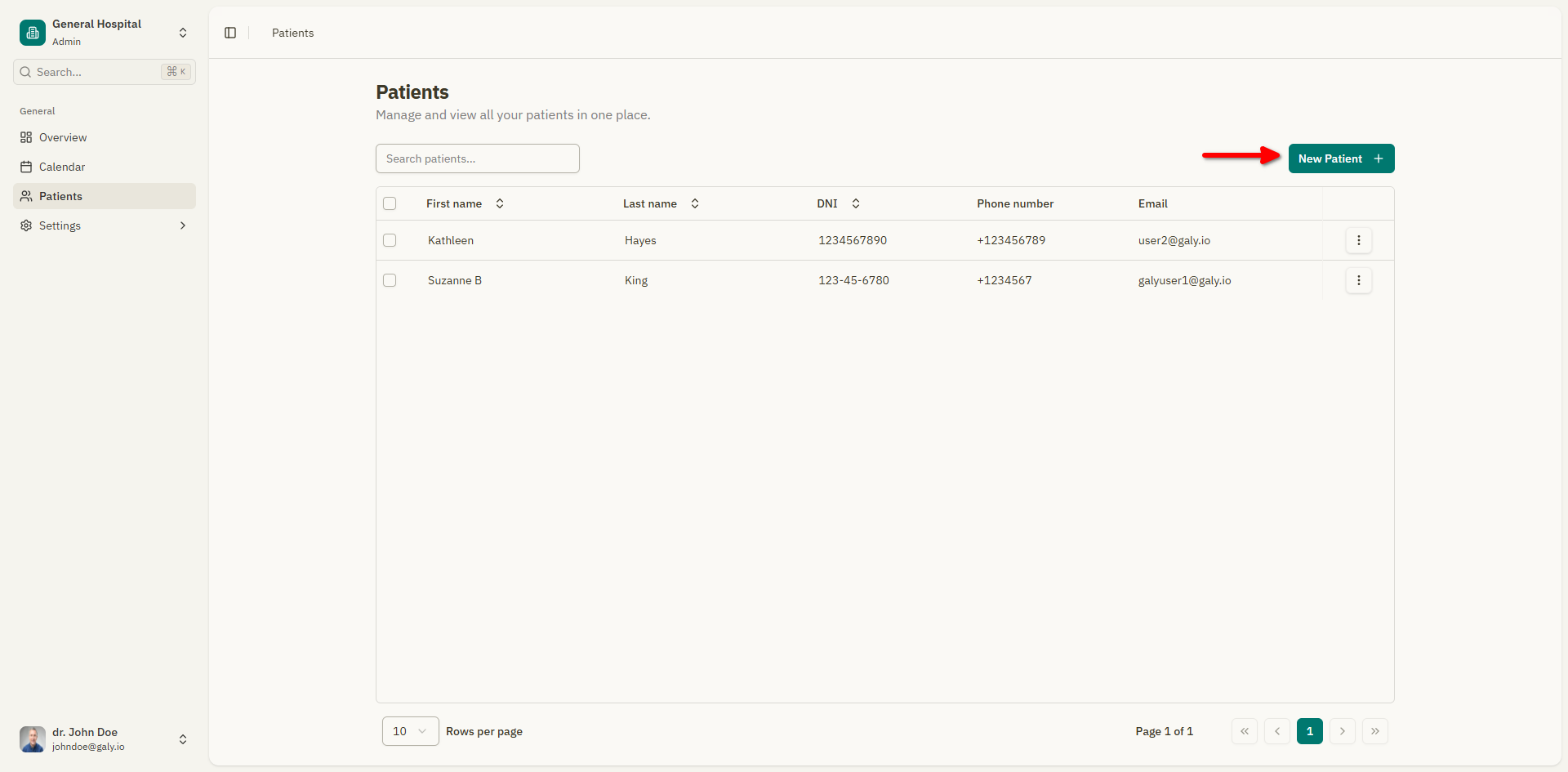
To register a new patient, click the "New Patient" button from the patient list, or select "New Patient" when creating an appointment.
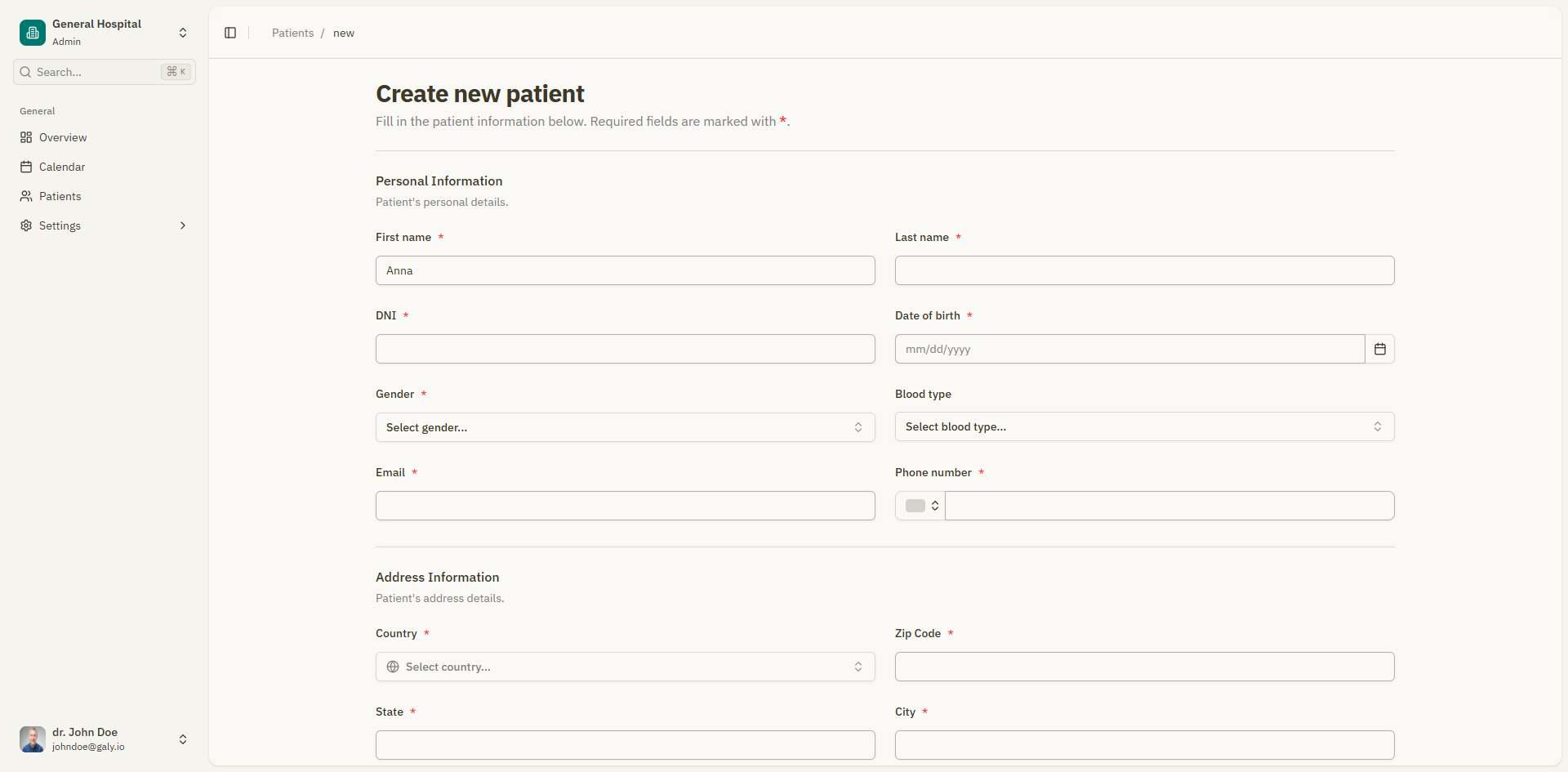
The patient form is organized into six sections. Fields marked with an asterisk (*) are required.
Section 1: Personal Information
Basic identification details for the patient.
| Field | Description | Required |
|---|---|---|
| First name | Patient's given name(s) | Yes |
| Last name | Patient's family name(s) | Yes |
| DNI | National ID number | Yes |
| Date of birth | Birth date (DD/MM/YYYY format). Click the calendar icon to use the date picker. | No |
| Gender | Male, Female, or Other | No |
| Blood type | A+, A-, B+, B-, AB+, AB-, O+, O- | No |
| Marital status | Single, Married, Divorced, Widowed | No |
Section 2: Contact Information
How to reach the patient.
| Field | Description | Required |
|---|---|---|
| Patient's email address | No | |
| Phone number | Phone number with country code selector | No |
Section 3: Address Information
The patient's residential address.
| Field | Description | Required |
|---|---|---|
| Country | Select from the country dropdown | No |
| State | State or province | No |
| City | City | No |
| Street | Main street address | No |
| Street 2 | Apartment, suite, or additional details | No |
| ZIP code | Postal code | No |
| Short address | A brief reference (e.g., "Near Central Park") | No |
Section 4: Emergency Contact
Who to contact in case of emergency.
| Field | Description | Required |
|---|---|---|
| Contact name | Name of the emergency contact person | No |
| Contact phone | Phone number of the emergency contact | No |
Section 5: Medical Information
Relevant medical background.
| Field | Description | Required |
|---|---|---|
| Allergies | List of known allergies (free text) | No |
| Current medications | List of current medications (free text) | No |
| Insurance provider | Name of the insurance company | No |
| Policy number | Insurance policy number | No |
| Referred by | Who referred this patient | No |
Section 6: Additional Information
Any other notes about the patient.
| Field | Description | Required |
|---|---|---|
| Notes | Free text field for any additional observations | No |
Saving the patient
After filling in the required fields:
- Review the information for accuracy.
- Click "Save Patient" at the bottom of the form.
- A success notification confirms the patient was created.
- You are redirected to the patient list.
If there are validation errors, the form highlights the problematic fields with error messages. Correct the errors and try saving again.
You don't need to fill in every field right away. You can always come back to the patient details page to update the information later.
Creating a patient from an appointment
When creating an appointment, you can register a new patient inline by selecting "New Patient" in the patient section. In this case, you provide basic information (first name, last name, DNI, phone), and the patient record is created automatically when the appointment is saved.
You can then complete the full patient profile from the patient details page.