Users & Invitations
The Users tab under Office Settings allows you to manage the people who have access to your medical office and invite new team members.
To access it, go to Settings > Office and select the "Users" tab. Within this tab, there are two sub-sections: Users and Invitations.
Users
The Users section shows all team members who currently have access to your office.
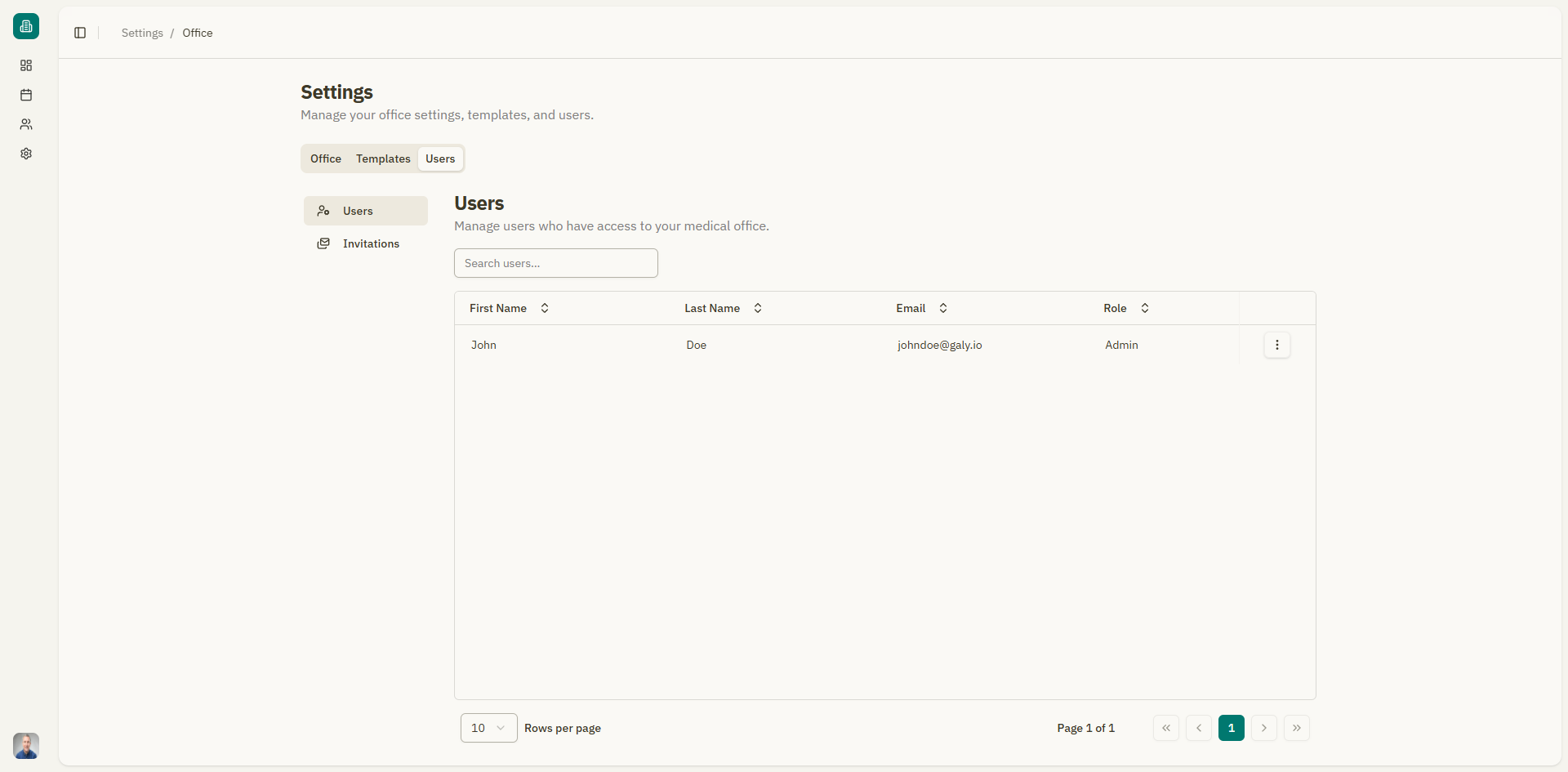
Users table
| Column | Description |
|---|---|
| First Name | Team member's first name |
| Last Name | Team member's last name |
| Their email address | |
| Role | Their assigned role (Admin or User) |
| Actions | View info or delete |
Viewing user information
Click "View Info" from the actions menu to see a detailed card with the user's profile information, including their email address.
Roles
Galy has two roles:
| Role | Description |
|---|---|
| Admin | Full access to all features, including office settings, user management, and template management. |
| User | Access to patient management, appointments, and consultations. Limited access to settings. |
Removing a user
To remove a team member from your office:
- Click the actions menu on the user's row.
- Select "Delete".
- A confirmation dialog appears. Type "DELETE" to confirm.
- Click "Delete".
Removing a user revokes their access to the office immediately. This action cannot be undone.
Bulk delete
Select multiple users with checkboxes, then click "Delete selected users" and confirm.
Searching users
Use the search bar to find users by name or email.
Invitations
The Invitations section shows pending invitations that haven't been accepted yet.
Switch to the "Invitations" sub-tab to view them.
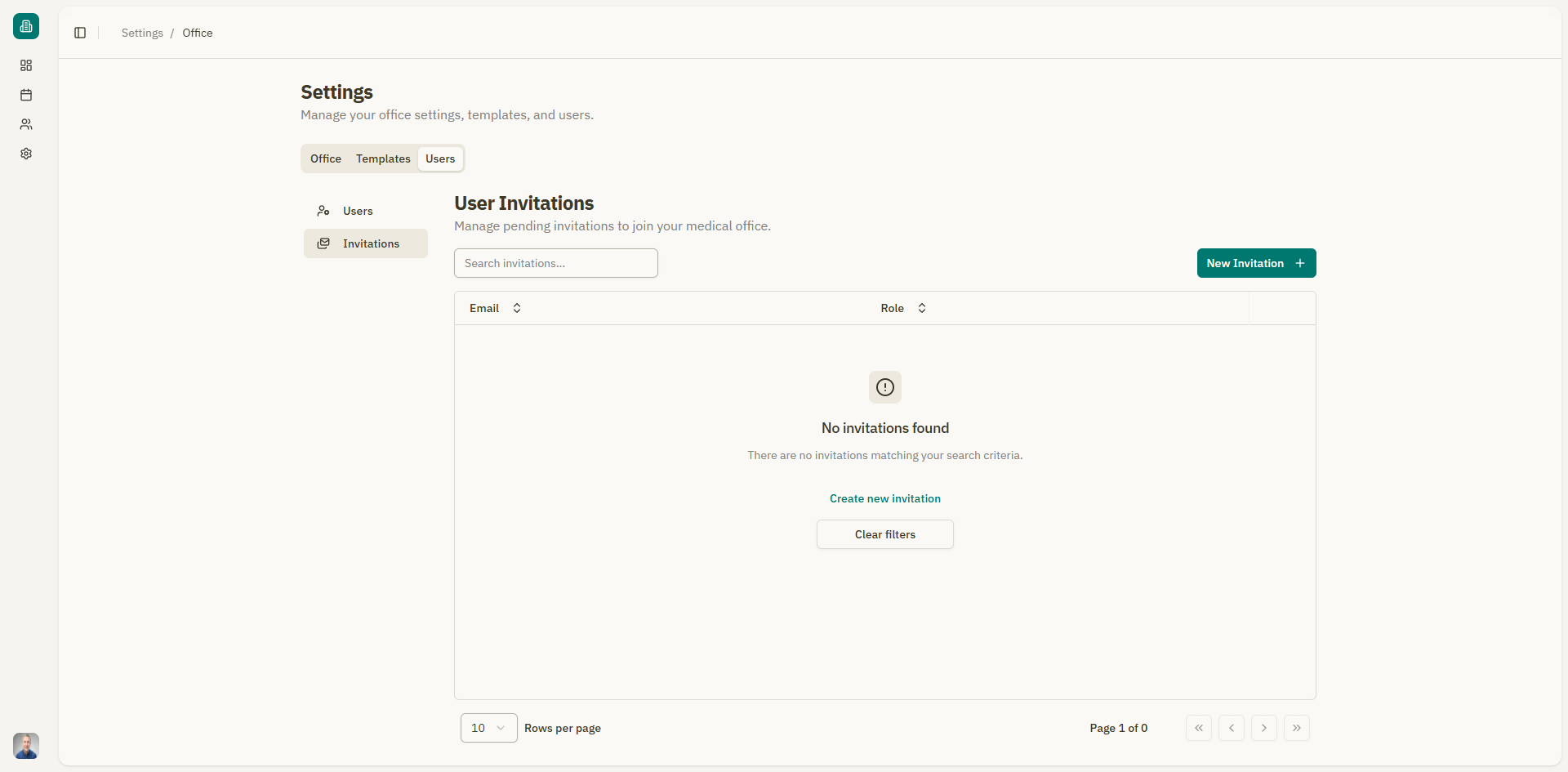
Invitations table
| Column | Description |
|---|---|
| The invited person's email address | |
| Role | The role they will be assigned (Admin or User) |
| Status | Current status (Pending) |
| Actions | Delete the invitation |
Sending a new invitation
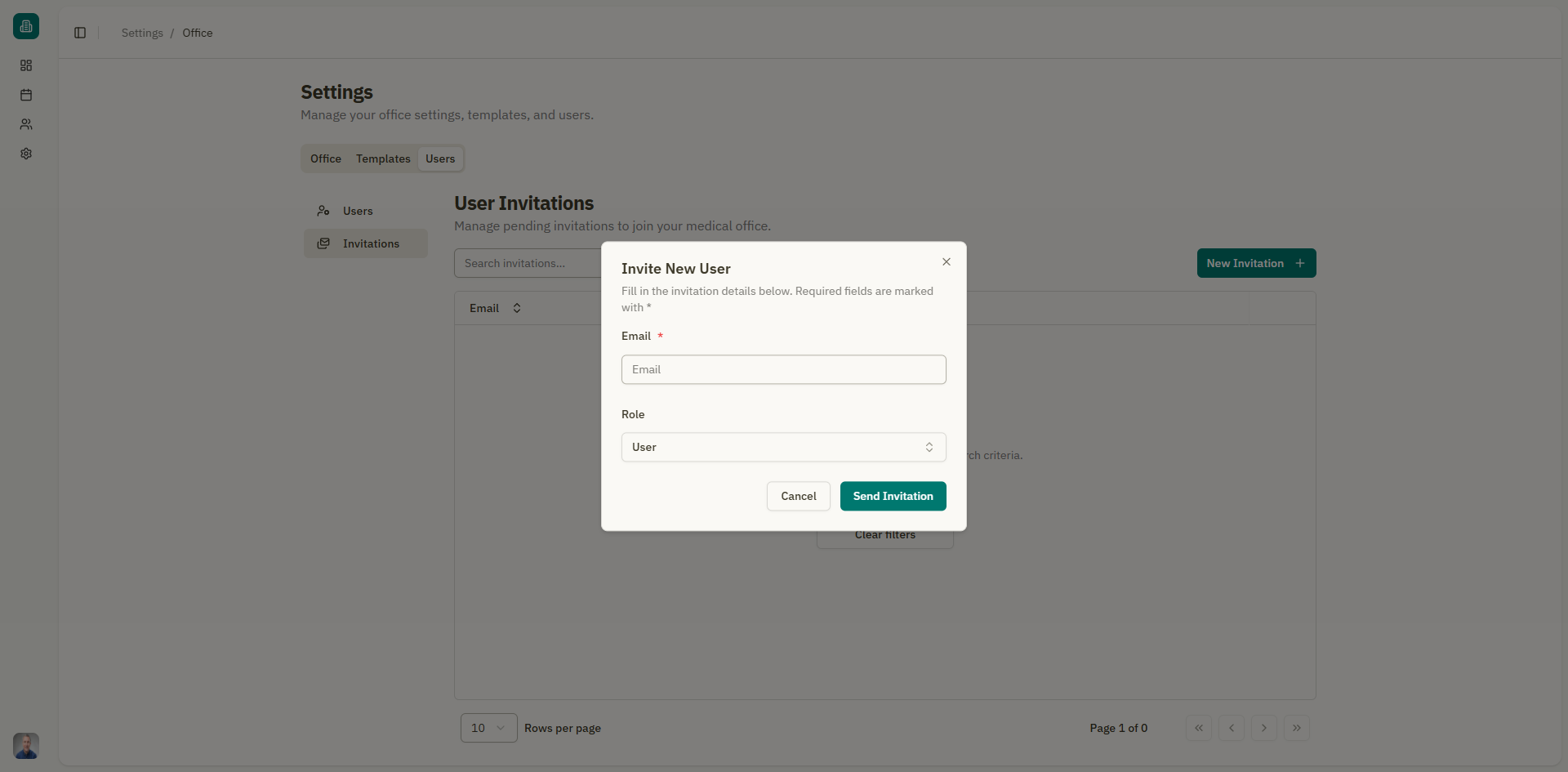
- Click the "New Invitation" button.
- A form appears with the following fields:
| Field | Description | Required |
|---|---|---|
| The email address of the person you want to invite | Yes | |
| Role | The role to assign: Admin or User | Yes |
- Click "Send Invitation".
- The invited person receives an email with a link to accept the invitation.
Invitation errors
The following errors may appear when sending invitations:
| Error | Description |
|---|---|
| Email already exists | The email is already associated with an existing user in the office |
| Cannot invite yourself | You can't send an invitation to your own email address |
| User limit reached | The office has reached its maximum number of users |
What happens when someone accepts an invitation
When an invited person clicks the link in their email:
-
If they don't have a Galy account:
- They are taken to a registration page where they complete their profile (first name, last name, password).
- After completing the form, they are added to your office with the assigned role.
-
If the invitation has expired:
- They see a message: "Invitation Expired".
- You'll need to send a new invitation.
Deleting an invitation
To cancel a pending invitation:
- Click the actions menu on the invitation row.
- Select "Delete".
- Confirm the deletion.
The invited person will no longer be able to use the invitation link.
Bulk delete invitations
Select multiple invitations with checkboxes, then click "Delete selected invitations" and confirm.
Empty states
- No users found — If the search returns no results, a message shows with a "Clear filters" button.
- No invitations found — Shows when there are no pending invitations, with a "Create new invitation" button.